

Storage Details Analysis: Discover What Is Taking Up Space in Your Cloud and Local Drives
Running out of storage space is frustrating, especially when you cannot see what is causing the problem. Important documents become mixed with old downloads, oversized folders, temporary files, backups, and forgotten projects. Air Cloud Analyzer turns that confusing collection of data into clear reports for your cloud accounts and local drives, helping you understand your storage before you decide what to delete, move, or archive.
Ready to discover what is taking up space in your cloud accounts and local drives?
Download Air Cloud AnalyzerSix Ways to Analyze Your Storage
Air Cloud Analyzer provides six analysis views designed to answer the most important questions about your files:
- Details shows the files and folders inside a selected location, including their size, percentage of occupied space, and number of files.
- Top Files identifies the largest individual files so you can quickly find the items consuming the most storage.
- File Types groups content by extension or category, revealing how much space is used by videos, images, documents, archives, applications, and other formats.
- Duplicated Files finds possible duplicate content that may be wasting space across folders, cloud accounts, or local disks.
- Dates organizes files according to relevant dates, helping you discover old, recently modified, or forgotten content.
- Search lets you locate specific files using criteria such as name, size, type, or date without browsing every folder manually.
These reports work together to provide a complete storage overview. The Details analysis is the best place to start because it shows exactly how the space in a selected location is distributed.
What Is the Storage Details Analysis?
The Details view creates an easy-to-read breakdown of the files and folders in a cloud directory or local drive. A normal file browser tells you where items are located, but it does not always make their impact on your available space obvious. Air Cloud Analyzer adds the information needed to make practical storage decisions.
For every item, the table can display its name, total size, percentage of the selected location, and number of files contained in a folder. You can sort the results by size to place the largest storage consumers at the top. This immediately answers a common question: “What is taking up all my space?”
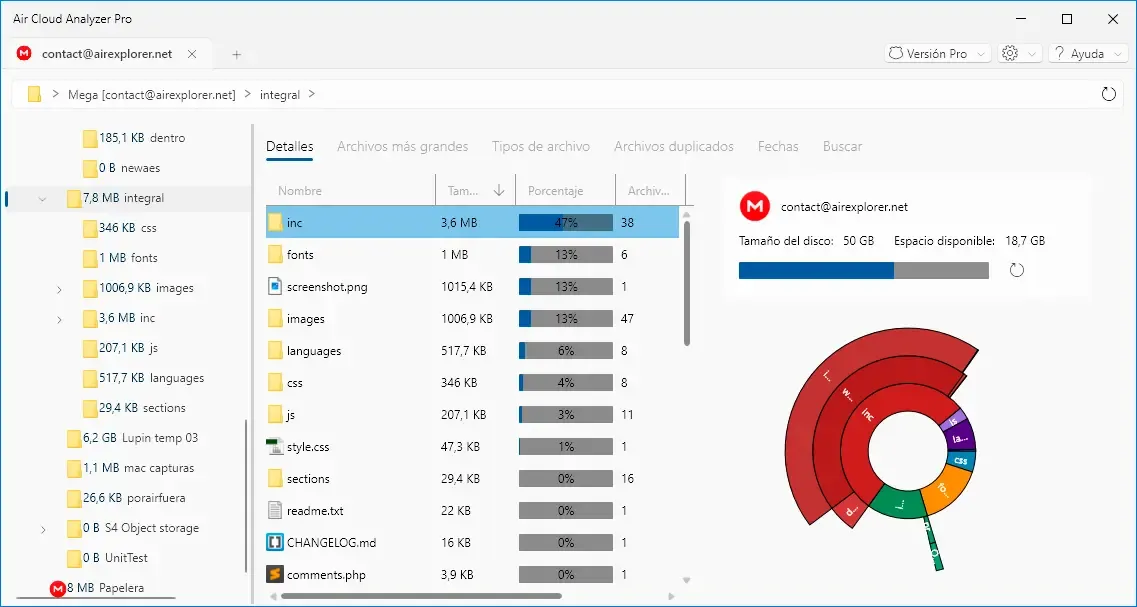
In a cloud account, the analysis may reveal that one project, image library, or backup folder represents most of the used capacity. On a local disk, it can expose large user profiles, application folders, system files, virtual disks, temporary installation data, or an overloaded Recycle Bin. Instead of opening folders one by one and guessing, you can focus on the areas where cleanup will make the greatest difference.
Understand Folder Size with a Visual Storage Map
The circular Sunburst chart makes the folder hierarchy easier to understand. Each segment represents a file or folder, and larger segments indicate greater storage use. The rings show different directory levels, allowing you to follow a large folder into its subfolders and see which branch is responsible for most of its size.
This visual map is especially useful when you manage thousands of files. A long list can hide patterns, but differences in the chart become visible at a glance. The interface also shows the total capacity and available space for the selected account or drive, so you can compare individual folders with the overall storage situation.
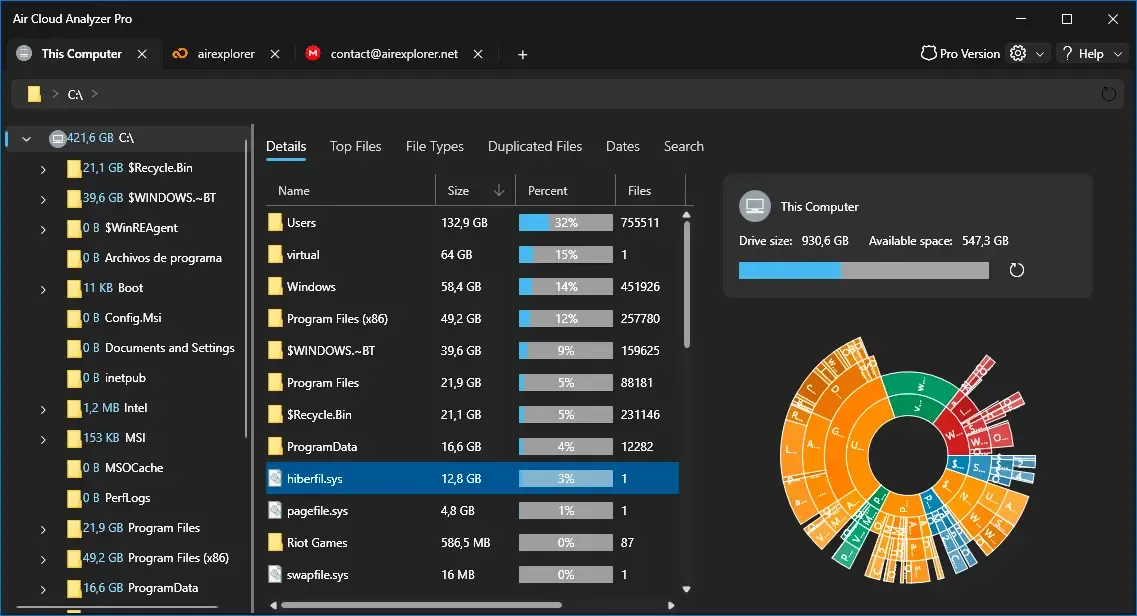
Tables, percentages, progress bars, file counts, and visual charts provide several ways to understand the same data. This makes the analysis useful for both everyday users and professionals managing large document collections.
Analyze Cloud Accounts and Local Drives in One Interface
Air Cloud Analyzer applies the same storage analysis approach to supported cloud services and local disks. This unified experience matters when your documents are spread across several locations. Cloud providers often present storage information differently, while local file browsers may not calculate folder sizes clearly or quickly.
With Air Cloud Analyzer, you can review a complete account, select a specific directory, and navigate deeper into its structure. You can compare how space is used in the cloud and on your computer without learning a different workflow for every location.
What Problems Does the Details View Solve?
The Storage Details analysis helps when:
- Your cloud account is almost full, but you do not know why.
- Your computer is running out of disk space.
- A shared or business project has grown unexpectedly.
- Large folders are hidden deep inside a complex directory structure.
- You need to decide which data should be deleted, transferred, or archived.
- You want to clean up storage before paying for a larger plan.
The biggest advantage is prioritization. Deleting hundreds of tiny files may recover very little space, while reviewing one unnecessary backup or video collection could free several gigabytes. By showing folder size and storage percentage, Air Cloud Analyzer directs your attention to the actions with the highest potential impact.
It also reduces the risk of careless cleanup. Better information lets you review what a large folder contains before making changes. Analysis does not mean automatically deleting files; it helps you make informed decisions about what should stay, what should be archived, and what may no longer be needed.

Make Storage Management Faster and Smarter
Effective cloud storage management begins with visibility. You need to know what you have, where it is stored, and how much space it consumes. Air Cloud Analyzer transforms an overwhelming folder structure into a practical storage report.
Start with Details to identify the largest folders and understand their hierarchy. Then use Top Files, File Types, Duplicated Files, Dates, and Search to investigate specific problems. Together, these tools help you find large files, organize cloud documents, clean up local disk space, and avoid unnecessary storage upgrades.
When you can see exactly where your space is going, storage management stops being guesswork and becomes a faster, safer, and more confident process.