

Dates Analysis: Organize Files by Age
When cloud storage or a local drive starts running out of space, knowing how much data you have is only part of the answer. You also need to understand when those files were last modified. Old project exports, forgotten backups, historical documents, and files that have not changed for years can remain hidden inside complex folder structures while continuing to consume valuable capacity.
Air Cloud Analyzer makes this history visible with its Dates analysis. Instead of browsing folders one by one, you can see how files and storage space are distributed across time intervals. This chronological view helps you locate older content, recognize recent growth, and decide what should be kept active, archived, moved, or carefully reviewed.
Want to understand how the age of your files affects your cloud and local storage?
Download Air Cloud AnalyzerWhat Does the Dates Analysis Show?
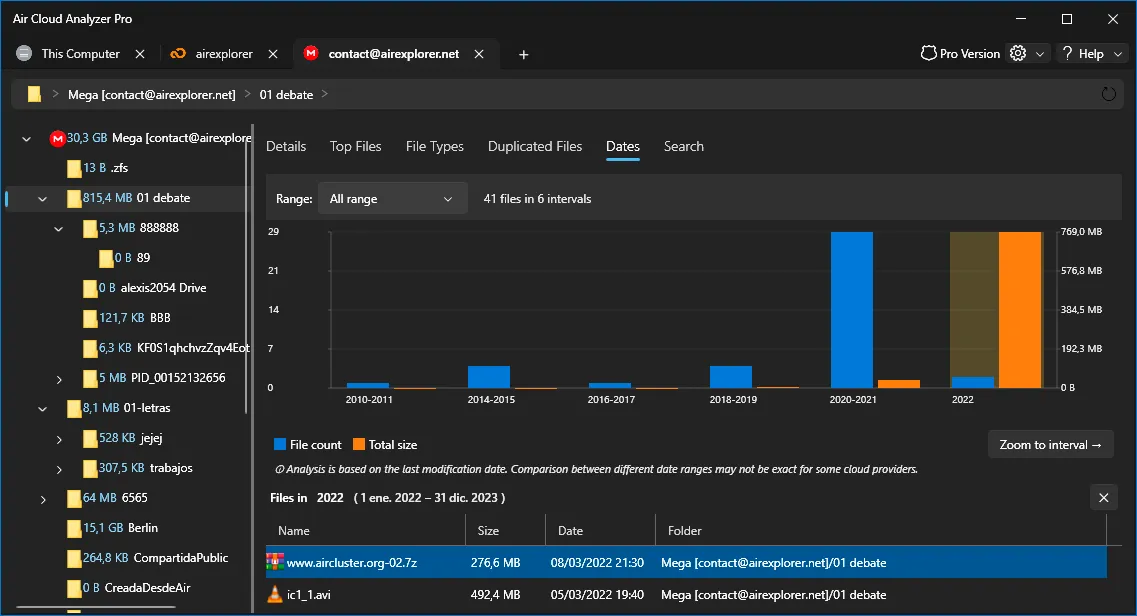
Dates is one of the six analysis views in Air Cloud Analyzer, alongside Details, Top Files, File Types, Duplicated Files, and Search. It groups the analyzed files into date intervals according to their last modification date.
The chart compares two important measurements:
- File count, showing how many files belong to each period.
- Total size, showing how much storage those files consume.
This distinction is useful because a period containing many files does not necessarily occupy the most space. Thousands of small documents may have less impact than a few large videos or archives. The Range control lets you adjust the time span, while Zoom to interval provides a closer view of a selected period. Below the chart, the file table displays the name, size, date, and folder of the matching items, turning the visual trend into an actionable list.
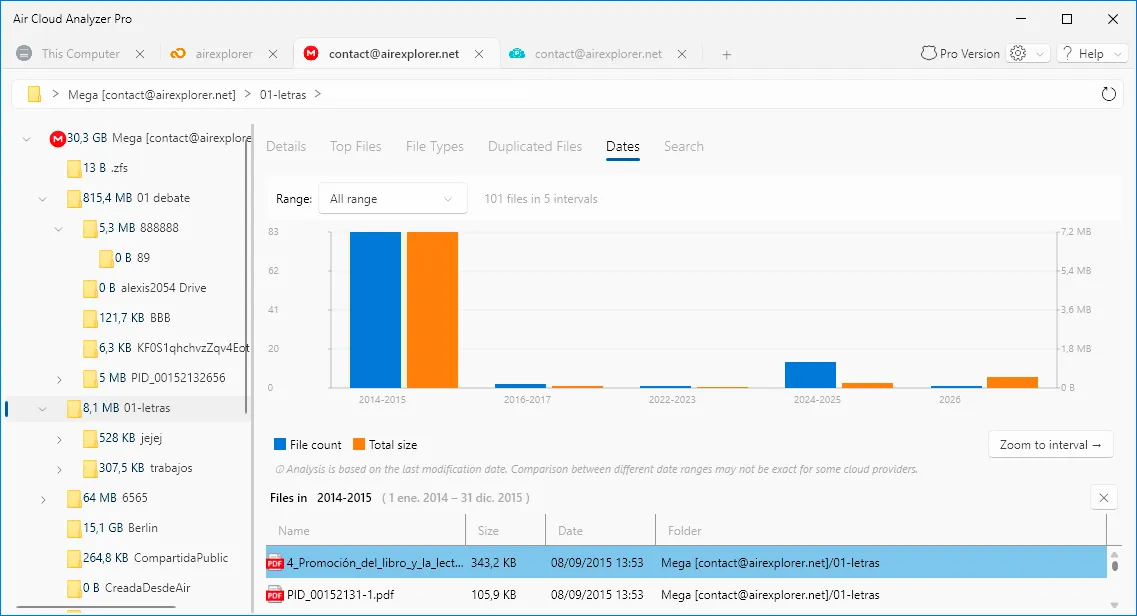
The analysis uses the last modification date reported for each file. Date comparisons may vary slightly between cloud providers, so the results should guide your review rather than replace checks on important content.
What Storage Problems Does Dates Solve?
Storage problems are often caused by accumulated data rather than current work. A folder may contain several generations of exports, retired projects, obsolete installers, or backups that were created years ago and never revisited. Without a chronological overview, these files look like part of one undifferentiated collection.
Dates helps answer practical questions such as:
- Which periods contain the oldest files?
- How much space is occupied by content that has not changed for years?
- Did storage grow suddenly during a particular project or migration?
- Are recent files consuming more capacity than historical ones?
- Which older items should be reviewed for archiving?
You can focus on a period, inspect its file list, and use the folder information to locate the original content. This reduces guesswork and avoids an unfocused cleanup based only on filenames.

Advantages of Keeping File Dates Under Control
Regular date-based reviews make storage growth easier to understand. They help separate active material from historical data and reveal whether capacity is being consumed gradually or by a specific period of activity. For businesses, this can support retention reviews and project archiving. For personal users, it can uncover forgotten media, downloads, and old backups.
The main benefits include faster cleanup planning, better archive decisions, fewer unnecessary storage upgrades, and clearer visibility across cloud accounts and local disks. Dates does not assume that an old file is disposable. Age is a useful signal, but every file should be evaluated according to its purpose, ownership, importance, and backup status before it is deleted or moved.
How to Start Using Air Cloud Analyzer
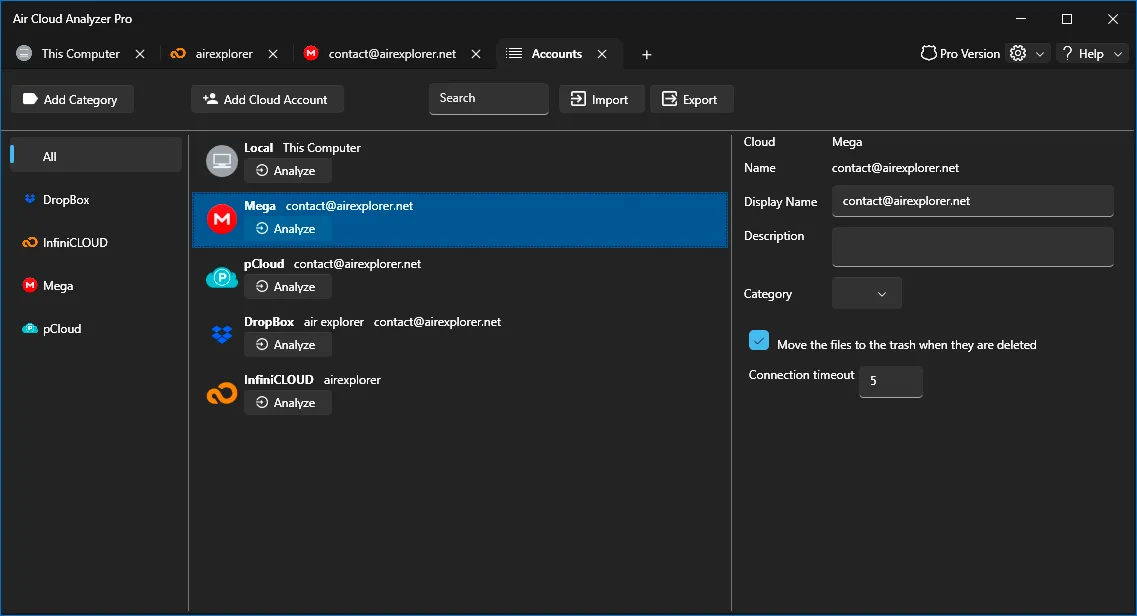
1. Open the Accounts View
After installing Air Cloud Analyzer, open Accounts. This screen lists your local computer and every connected cloud account in one place. Each available location has an Analyze option.
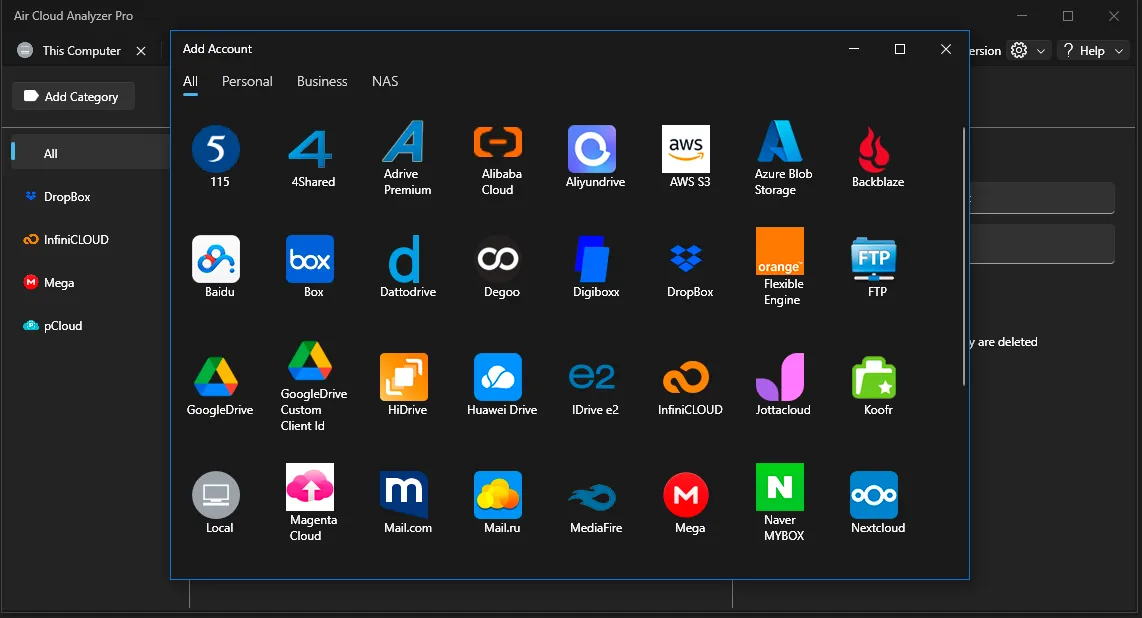
2. Add Your Cloud Account
Select Add Cloud Account, choose the required provider or connection type, and complete its authorization process. Air Cloud Analyzer supports a wide selection of cloud services, so several storage locations can be analyzed from the same application.
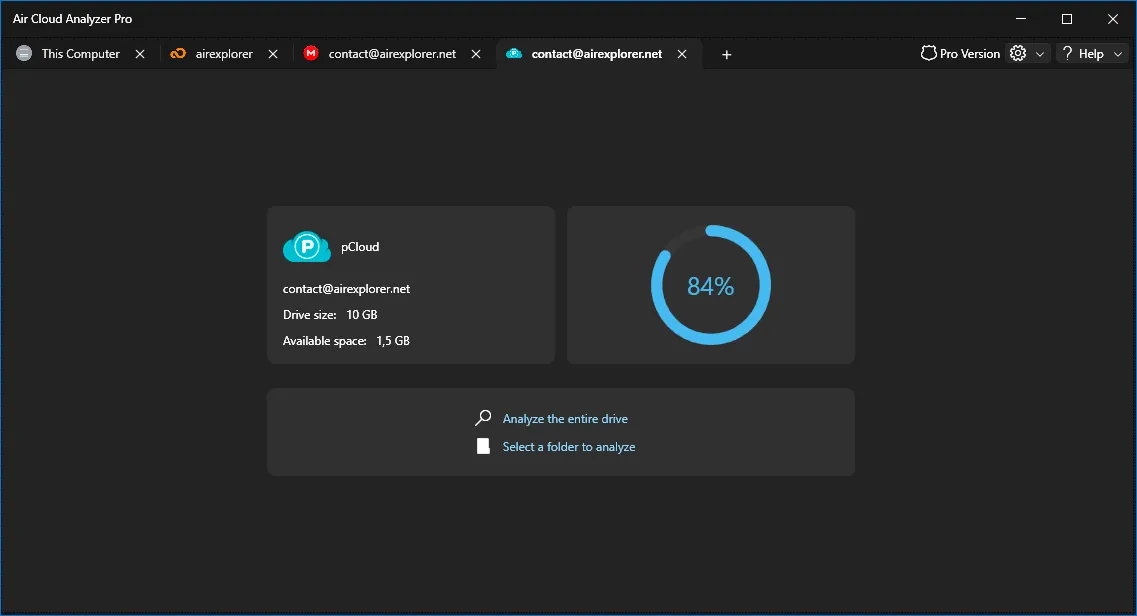
3. Choose the Scope of the Analysis
Select Analyze beside the connected account. You can scan the entire drive for a complete chronological overview or select a folder when you want to investigate one project, shared directory, or problem area.
4. Open Dates and Explore the Timeline
When the scan finishes, open the analyzed location and select Dates. Compare file count with total size, choose an interval, and inspect the files listed below the chart. Start with periods that combine old modification dates with high storage use, but review every item before taking action.
Turn File History into Better Storage Decisions
Air Cloud Analyzer’s Dates analysis transforms file timestamps into a clear storage timeline. It shows when content was modified, how many files belong to each period, how much space they use, and where they are stored. Used together with Details, Top Files, File Types, Duplicated Files, and Search, it provides the context needed to manage cloud and local storage with greater confidence.
When file age remains visible, you can identify forgotten data sooner, create smarter archiving routines, and keep valuable storage space under control without deleting files blindly.