

Duplicate Files Analysis: Recover Storage Space
Duplicate files are easy to create and difficult to notice. The same presentation may be copied into several project folders, an image can be downloaded more than once, or a backup may contain files that already exist elsewhere. Each copy looks harmless on its own, but redundant content can gradually consume a significant amount of cloud or local storage.
Air Cloud Analyzer makes this wasted space visible with its Duplicated Files analysis. The view collects files identified as duplicates, groups matching copies together, and shows where each one is stored. Instead of searching folder by folder, you receive a focused list that helps you decide which copies are necessary and which may be safely removed, moved, or archived.
Want to discover which duplicate files are consuming your storage space?
Download Air Cloud AnalyzerWhat Does the Duplicated Files Analysis Show?
Duplicated Files is one of the six analysis views available in Air Cloud Analyzer, alongside Details, Top Files, File Types, Dates, and Search. While the other views explain storage by folder, size, format, or age, this report concentrates on repeated files.
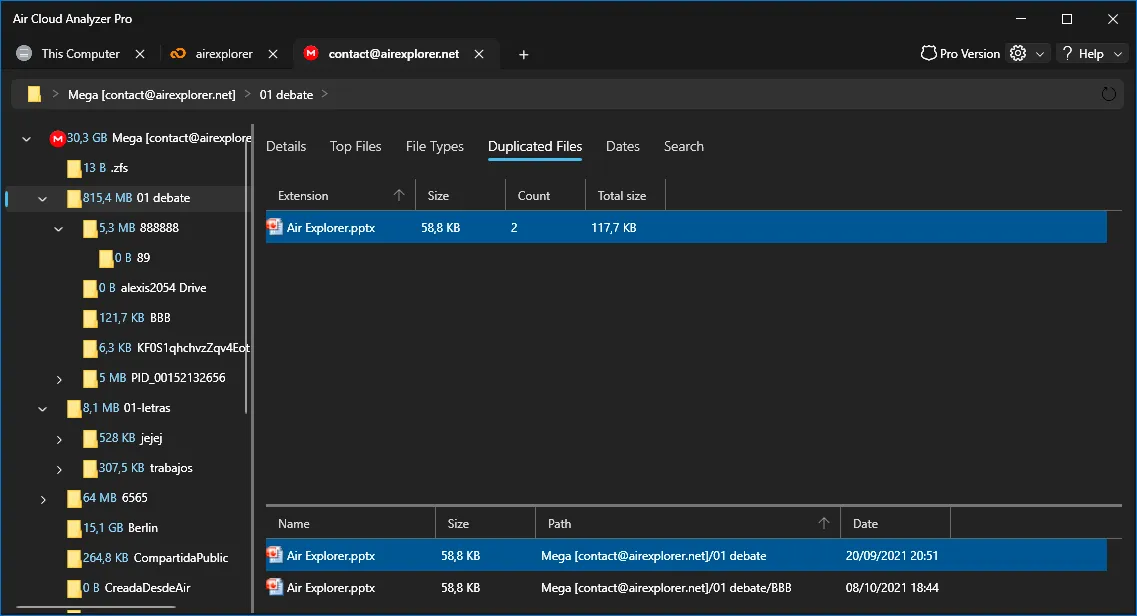
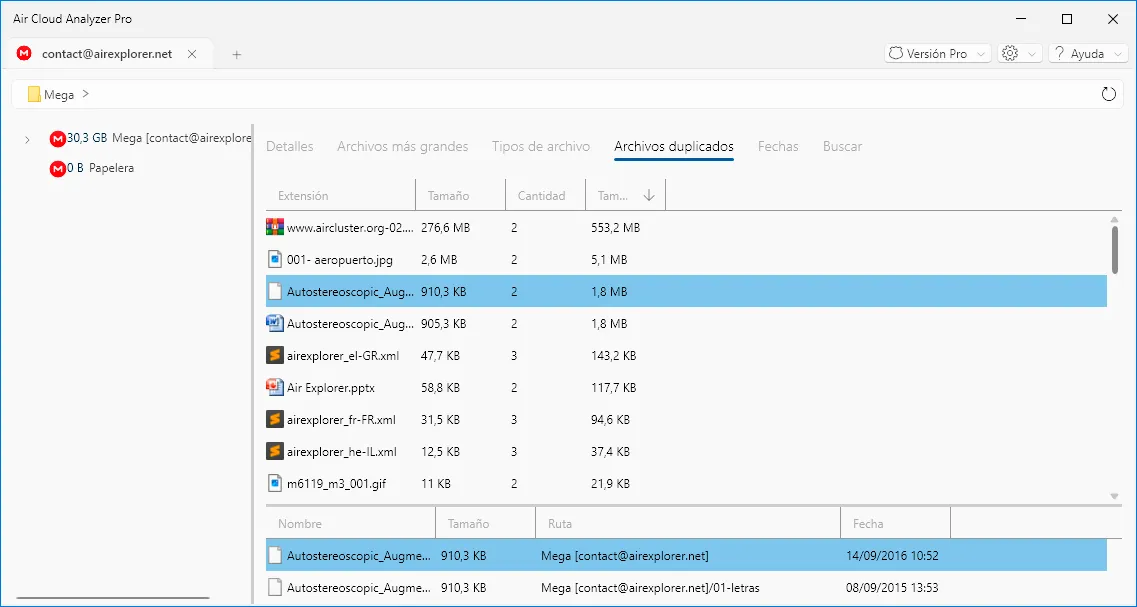
The upper table organizes the detected duplicate groups and displays useful measurements:
- File name or extension, helping you recognize the content.
- Size, showing the size of an individual copy.
- Count, indicating how many copies belong to the group.
- Total size, revealing the combined storage occupied by those copies.
When you select a group, the lower panel lists its individual files. For each copy, you can review its name, size, path, and modification date. The path is especially important because identical-looking files may serve different purposes when stored in separate project, backup, or shared folders.
What Problems Does Duplicate Analysis Solve?
Duplicates often remain hidden because ordinary file browsing shows one folder at a time. Even when two files have the same name, they may be separated by several levels of directories or stored among thousands of unrelated documents. In cloud storage, manually checking sizes and locations can be even more time-consuming.
The analysis helps answer practical questions:
- Which files have multiple copies?
- How many copies of each file exist?
- How much storage does each duplicate group consume?
- In which folders are the copies located?
- Which version is newer, and which one should be reviewed first?
This information turns a vague storage problem into a manageable cleanup plan. Rather than deleting small files at random, you can prioritize duplicate groups with the greatest total size and recover capacity more efficiently.
Advantages of Keeping Duplicate Files Under Control
Controlling duplicates does more than free space. It reduces confusion when several copies of a document contain different edits, improves folder organization, and makes it easier to identify the file that should be treated as the main version. Cleaner storage can also simplify backups and migrations because there is less redundant data to copy, upload, or verify.
Regular reviews can help you avoid unnecessary cloud plan upgrades, reduce transfer times, and prevent old copies from spreading through shared folders. For teams, duplicate visibility supports clearer document-management habits and reduces the risk of people working from the wrong copy.

Not every duplicate is unnecessary. A second copy may be an intentional backup, part of a required archive, or stored in a shared location for a valid reason. The report provides evidence for a decision; it should not replace a careful review.
How to Work Safely with Duplicate Files
A reliable duplicate-cleanup process should be deliberate:
- Start with total size. Review the groups that offer the greatest potential space recovery first.
- Select a duplicate group. Use the lower panel to inspect every copy associated with it.
- Compare the paths. Determine whether a copy belongs to an active project, backup, archive, or shared folder.
- Check the dates. Modification dates can help identify recent and older versions, but age alone does not prove that a file is unnecessary.
- Choose the primary copy. Decide which location should contain the file you intend to preserve.
- Confirm dependencies and backups. Check whether other users, applications, or workflows rely on any of the copies.
- Remove, move, or archive only confirmed redundant copies. Work in small groups and verify the result before continuing.
Be particularly careful with business documents, application data, synchronized folders, and backups. If the purpose of a copy is unclear, leaving it in place until you can confirm its role is safer than making an irreversible decision.
Turn Duplicate Data into Useful Storage Space
Air Cloud Analyzer’s Duplicated Files analysis shows which files are repeated, how many copies exist, how much combined space they use, and where every copy is located. This visibility makes it easier to recover space without losing the context needed for a safe decision.
Used alongside Details, Top Files, File Types, Dates, and Search, the report becomes part of a complete storage-management routine. Keeping duplicates controlled means less wasted capacity, fewer confusing document versions, faster migrations, and cloud accounts and local drives that are easier to maintain.