
Getting Started
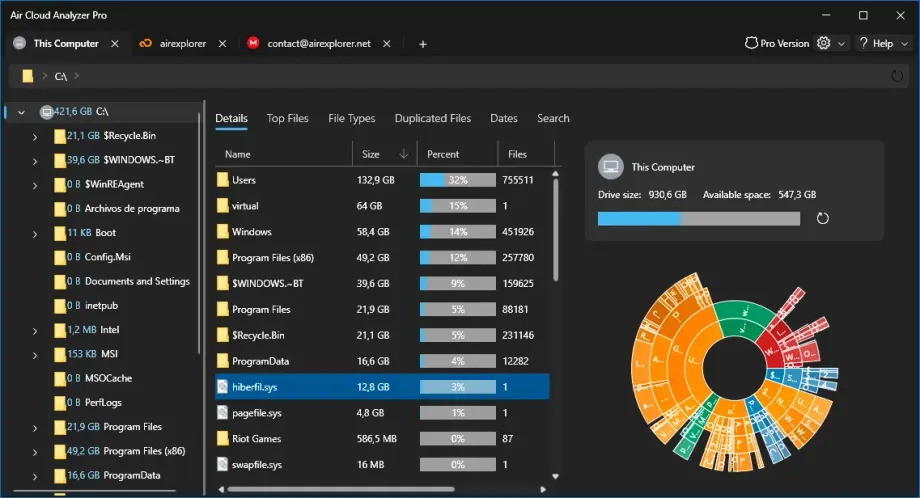
Air Cloud Analyzer helps you understand how your cloud storage and local drives are being used. You can connect cloud accounts, analyze full drives or selected folders, find large files, review file types, detect duplicates, search by filters, and explore storage usage by date.
What Is Air Cloud Analyzer?
Air Cloud Analyzer is a storage analysis tool for cloud accounts and local drives. It scans your files and shows clear reports to help you identify what is taking up space, where your largest files are, which file types use the most storage, and whether duplicate files can be removed.
Adding a Cloud Account
- Open Air Cloud Analyzer.
- Click Add Cloud Account.
- Select your cloud provider.
- Sign in or enter the required credentials.
- Wait for the account to be verified.
- The account will appear in your accounts list.
Some providers may open your web browser to complete authentication. After signing in, return to Air Cloud Analyzer to continue.
Analyzing a Drive or Folder
- Select a cloud account or local drive.
- Choose Analyze the entire drive to scan everything.
- Or choose Select a folder to analyze to scan only part of the storage.
- Wait until the analysis is complete.
Large accounts may take longer depending on the number of files and folders.
The analysis does not modify your files. It reads file information such as name, size, path, extension, and modification date in order to build the reports.
Understanding the Results
Largest Files
The Largest Files view shows the largest files found in the selected account or folder. Use this section to quickly identify files that may be worth deleting, moving, or archiving.
File Types
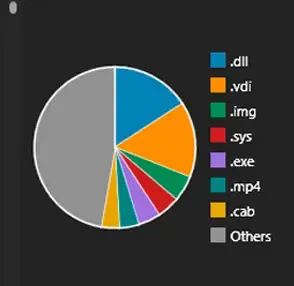
The File Types view groups files by category or extension, such as documents, images, videos, and audio files. This helps you understand which types of files consume the most space.
Duplicated Files
The Duplicated Files view shows files that appear to be duplicated. When supported by the cloud provider, duplicates can be identified more accurately.
For some providers, files may be grouped by identical name and size only. In those cases, their contents may not be identical, so you should review the files before deleting anything.
Dates
The Dates view shows files grouped by modification date. This helps you find old files, recently modified files, or storage growth over time.
Date analysis is based on the last modification date. Comparisons between different date ranges may not be exact for some cloud providers.
Search
The Search view lets you search files by name, size range, date range, file type, or custom extensions. Use it to quickly locate specific files or groups of files across the analyzed storage.
Opening and Deleting Files
You can open files, open their containing folder, or delete selected files directly from the results.
- Use Open to open a file.
- Use Open Folder to locate the file.
- Use Delete to remove selected files.
Before deleting files, make sure you no longer need them. Deleted cloud files may be moved to trash or permanently removed depending on the provider and account settings.
For local files, deletion behavior may depend on whether the recycle bin option is enabled.
Offline Cache
Air Cloud Analyzer may show previously analyzed data from an offline cache. Cached data lets you review past analysis results without reconnecting to the cloud account.
To perform cloud operations or refresh the information, connect to the cloud account and run the analysis again.
Importing and Exporting Accounts
Air Cloud Analyzer can export and import account configurations.
When exporting accounts, choose a strong password. You will need this password to import the accounts later.
If the password is incorrect, the exported accounts file cannot be loaded.
Options and Security
In Options, you can configure common preferences:
- Change the application language.
- Change the theme.
- Show hidden files.
- Configure how local files are deleted.
- Set, change, or remove a startup password.
- Check for updates.
- Send errors and suggestions.
A startup password can help prevent unauthorized access to the application on your computer.
Air Cloud Analyzer Pro
Air Cloud Analyzer Pro unlocks additional features such as adding more accounts or opening more tabs, depending on the version.
To activate Air Cloud Analyzer Pro:
- Open the Pro Version window.
- Enter your activation code.
- Wait until the license is verified.
If the activation code is invalid, expired, or already activated, check the code or contact support.
Troubleshooting
The account could not be verified
Check your credentials, internet connection, and provider permissions. If authentication opens in the browser, complete the login there and return to Air Cloud Analyzer.
The analysis is taking a long time
Large cloud accounts or folders with many files may require more time. You can analyze a smaller folder first if you only need information about a specific area.
Duplicate files may not be identical
Some cloud providers do not support file hashing. In those cases, files may be grouped by identical name and size, but their contents may still be different.
I see cached data
You are viewing offline cache data. Connect to the cloud account and refresh the analysis to get current results.
I cannot add more accounts
Some account limits may require Air Cloud Analyzer Pro.
I cannot open or delete a cloud file
Make sure the cloud account is connected. If the data was loaded from offline cache, reconnect to the account and refresh the analysis.
Contact and Support
If you find an issue or want to suggest an improvement, use Send errors and suggestions inside Air Cloud Analyzer.
You can also contact support at [email protected].