

Top Files Analysis: Find What Takes Up Space
When a cloud account or local drive is almost full, the cause is not always thousands of small documents. A handful of videos, backups, compressed archives, disk images, or forgotten project files can consume a surprisingly large part of the available capacity. Finding them manually means opening folders one by one and checking file properties, a slow process that becomes impractical when your data is spread across several locations.
Air Cloud Analyzer simplifies that work with its Top Files analysis. This view identifies the largest files in the selected cloud account, folder, or local drive and places the most important storage consumers in one clear list. Instead of guessing where your space has gone, you can see which files deserve attention first.
Want to find the files consuming the most space in your cloud accounts and local drives?
Download Air Cloud AnalyzerWhat Is the Top Files Analysis?
Top Files is one of the six storage analysis views available in Air Cloud Analyzer, alongside Details, File Types, Duplicated Files, Dates, and Search. While the Details view explains how space is distributed among folders, Top Files focuses directly on individual files.
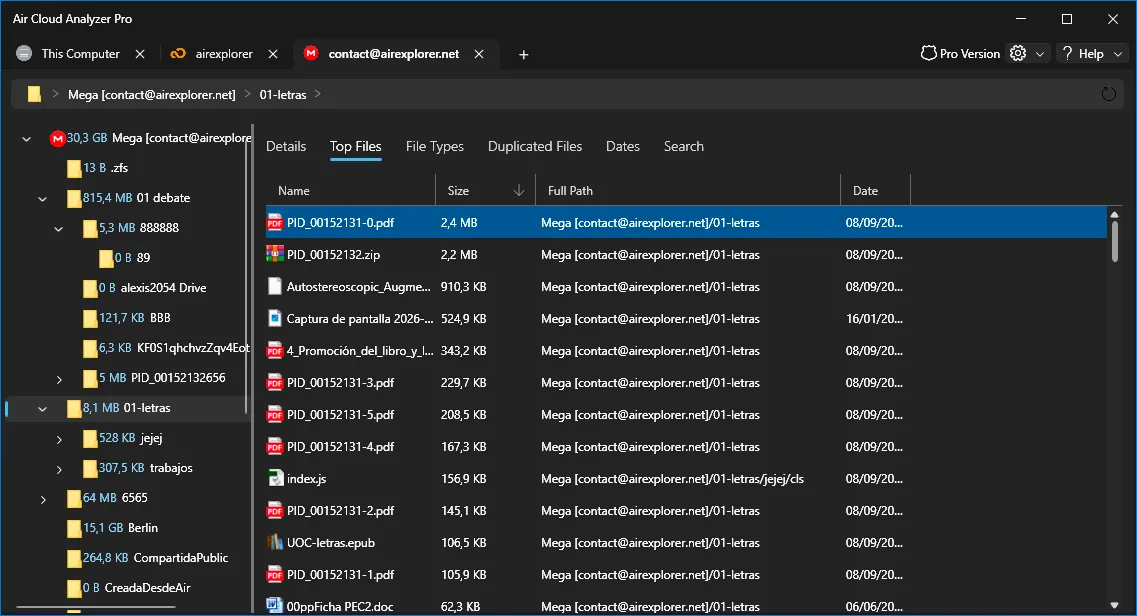
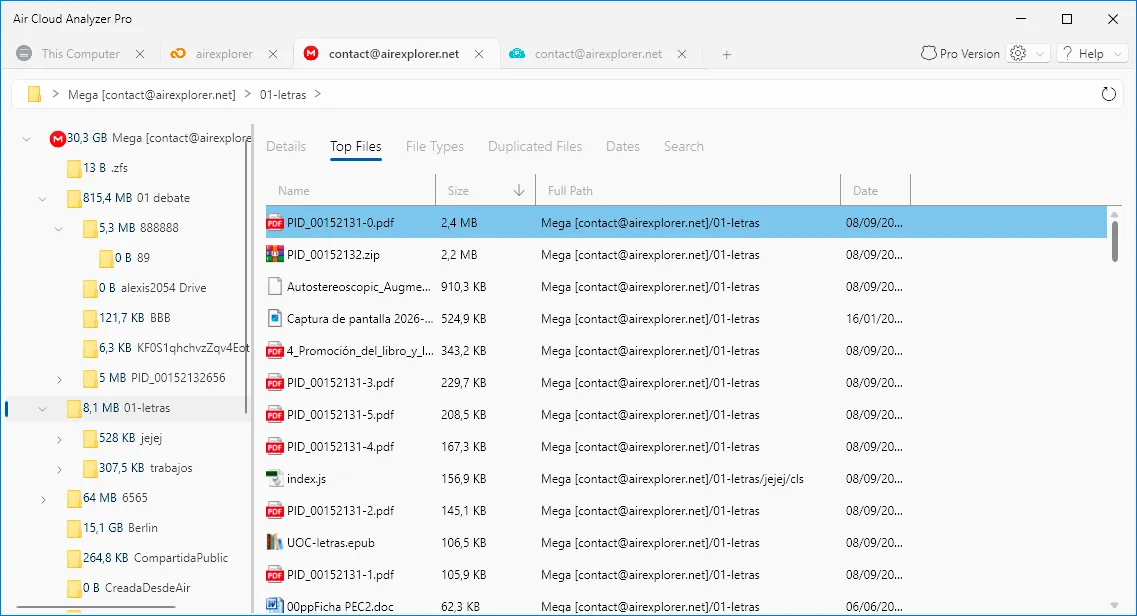
The analysis scans the selected location and produces a ranked list that can be sorted by size. The largest item appears at the top, followed by progressively smaller files. This gives you an immediate answer to a practical question: which individual files are taking up the most space?
The table provides useful context for every result, including:
- Name, so you can identify the file and its format.
- Size, allowing you to compare its impact on storage capacity.
- Full path, showing exactly where the file is stored.
- Date, helping you understand whether it is recent or potentially forgotten.
These details make the results actionable. You do not only discover that a large file exists; you also know what it is, where to find it, and whether its age may justify a closer review.
Find Large Files Without Searching Folder by Folder
Large files often remain hidden inside deep or unfamiliar folder structures. A backup may be stored inside an old project directory, a video export may be mixed with small documents, or a compressed archive may have been forgotten after its contents were extracted. Standard file browsing does not make these items obvious unless you already know where to look.
Top Files removes that obstacle by collecting the largest results from the selected location into a single view. The full-path column preserves their context, so you can locate every item without losing track of its original folder. This is especially useful when managing cloud storage, where browsing and calculating sizes can be slower than working with a local disk.
What Storage Problems Does Top Files Solve?
The analysis is useful whenever storage pressure demands a fast and informed response. It helps when:
- A cloud account is approaching its capacity limit.
- A local disk has little free space remaining.
- You need to understand why a folder has grown unexpectedly.
- Old backups, videos, archives, or installation files may have been forgotten.
- You want to clean up storage before paying for a larger plan.
- Business or shared storage needs regular review.
The main advantage is prioritization. Deleting hundreds of tiny files can take a long time while recovering very little capacity. Reviewing one unnecessary multi-gigabyte archive could produce a much greater result in minutes. Top Files directs your effort toward the files with the highest potential impact.
The Advantages of Keeping Your Largest Files Under Control
Knowing where your largest files are improves storage management beyond a one-time cleanup. Regular reviews reveal how your storage habits change and which types of content grow fastest. If large video exports repeatedly appear, you may decide to archive completed projects. If old backups dominate the list, you can review your retention strategy. If large files appear in unexpected folders, you can reorganize them before they become difficult to manage.
Keeping these files visible also helps you:
- Recover cloud or disk space more efficiently.
- Avoid unnecessary storage upgrades.
- Reduce the time spent searching through complex folders.
- Decide what should remain active and what can be archived.
- Detect unexpectedly large files before they create capacity problems.
- Improve document organization across cloud and local storage.
For teams, this visibility can support clearer storage policies. Large shared files can be reviewed according to their purpose, age, and location instead of being removed at random.

Review Before Deleting, Moving, or Archiving
A large file is not automatically an unnecessary file. It may be an important backup, a current project, a shared resource, or the only copy of valuable information. The purpose of Top Files is to create a focused review list, not to make deletion decisions for you.
Before taking action, confirm what the file contains, whether other people depend on it, and whether another safe copy exists. Depending on its purpose, the best choice may be to delete it, move it to another location, archive it in lower-cost storage, or leave it exactly where it is.
Turn Storage Data into Faster Decisions
Air Cloud Analyzer’s Top Files analysis transforms a vague “storage almost full” warning into a useful list of priorities. By combining file size, name, location, and date, it shows where a cleanup can have the greatest effect while preserving the information needed to act carefully.
Use Top Files regularly alongside Details, File Types, Duplicated Files, Dates, and Search to maintain a complete view of your data. When the largest files remain visible and controlled, cloud storage and local disk management become faster, safer, and far less stressful.