

File Types Analysis: Understand Your Storage
Knowing that a cloud account or local drive is almost full does not explain what is causing the problem. Are videos consuming most of the capacity? Is the account filled with compressed backups, images, documents, or application files? Without this context, storage cleanup becomes a slow process of opening folders and checking files individually.
Air Cloud Analyzer solves this problem with its File Types analysis. The view groups stored content by file extension and shows how much space each category uses. It turns a large, mixed collection of files into a clear storage profile, helping you understand what you have and where your cleanup efforts can make the greatest difference.
Want to discover which types of files consume your cloud and local storage?
Download Air Cloud AnalyzerWhat Does the File Types Analysis Show?
File Types is one of the six analysis views in Air Cloud Analyzer, alongside Details, Top Files, Duplicated Files, Dates, and Search. Instead of focusing on folders or individual large files, it organizes the selected storage location by extension.
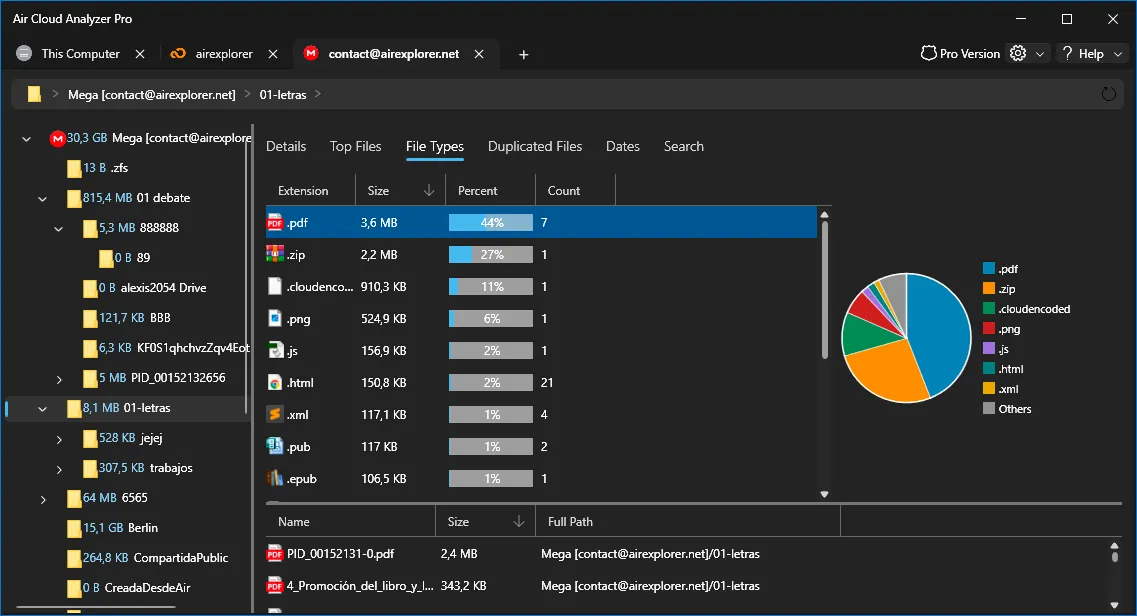
The table shows four key values for every file type:
- Extension, such as PDF, ZIP, PNG, JS, HTML, or EPUB.
- Size, representing the total storage used by that type.
- Percent, showing its share of the analyzed location.
- Count, indicating how many files belong to the group.
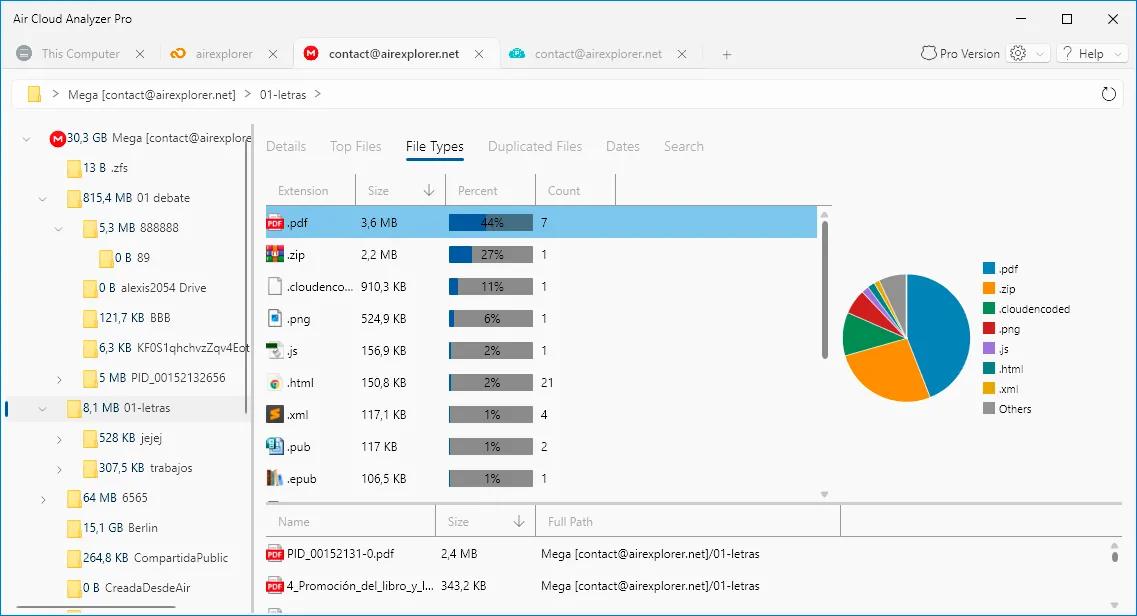
A pie chart provides an immediate visual comparison. Large segments reveal dominant file types, while smaller categories remain visible without making the table difficult to read. When you select an extension, the lower panel lists the matching files with their name, size, and full path. You can therefore move from a broad pattern to the exact files behind it.
What Problems Does File Types Solve?
Storage can grow for very different reasons, and each one requires a different response. A video-heavy account may contain completed recordings that should be archived. A large ZIP category may point to old backups or project packages. Thousands of images may indicate repeated exports, while an unexpected application or temporary-file extension could reveal content stored in the wrong location.
The analysis helps you answer practical questions:
- Which content category uses the most space?
- Is the problem caused by a few large files or many small ones?
- Are certain file types stored in unexpected folders?
- Which category should be reviewed before buying more capacity?
- What kind of content is growing fastest over time?
This information prevents unfocused cleanup. Instead of deleting random items, you can choose a strategy that matches the content: archive videos, review compressed backups, organize photos, remove obsolete installers, or transfer completed projects to another location.
Advantages of Keeping File Types Under Control
Regular File Types reviews make storage more predictable. They reveal changes in how an account is being used and can expose unusual growth before the storage limit becomes urgent. This is valuable for personal accounts, creative projects, shared team folders, and business document repositories.
Keeping file categories visible helps you recover space efficiently, avoid unnecessary plan upgrades, improve folder organization, and establish clearer retention rules. It can also support migration planning: before moving data to another cloud, you can see whether the transfer mainly consists of documents, media, archives, or another category.
File Types does not decide what should be deleted. It gives you a focused inventory so you can review files according to their purpose, location, age, and importance.
How to Start Using Air Cloud Analyzer
Getting from a new installation to the File Types report only requires a few steps.
1. Add a Cloud Account
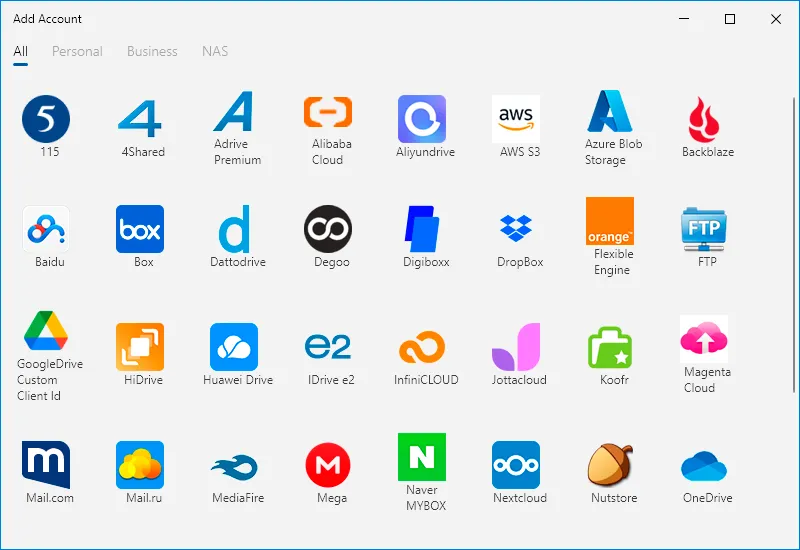
Open the account management area and choose Add Cloud Account. Air Cloud Analyzer displays the available cloud services and connection types. Select the provider you want to analyze and complete its authorization process. The exact sign-in steps may vary by service.
2. Choose the Account to Analyze
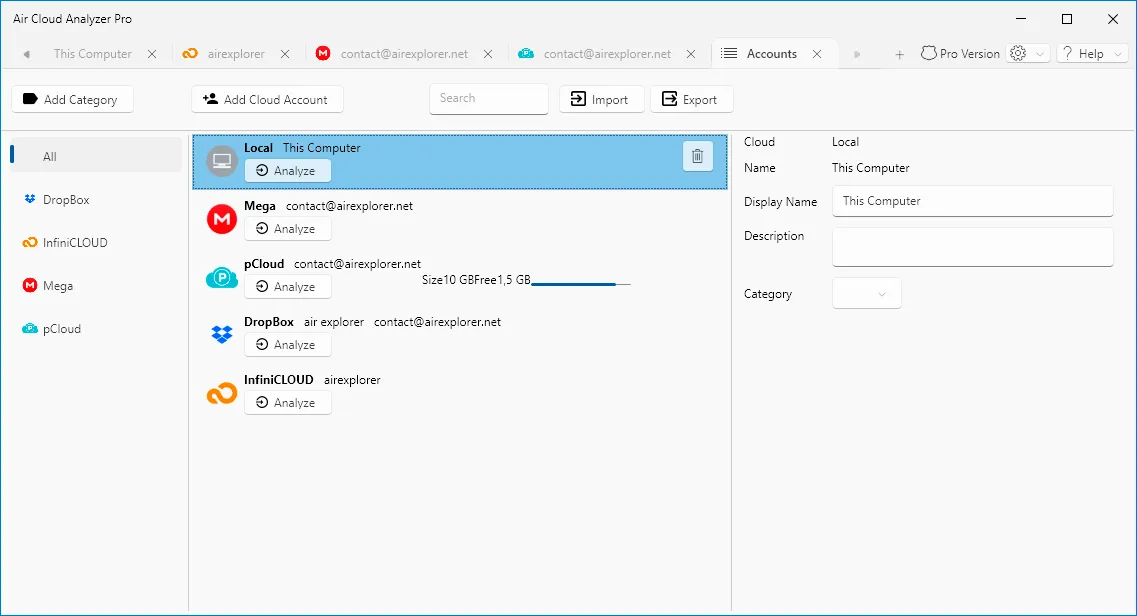
Connected cloud accounts appear in the Accounts view alongside the local computer. From here, select Analyze for the account or local storage you want to inspect. This central list makes it easy to manage several storage locations from the same application.
3. Analyze the Entire Drive or a Folder
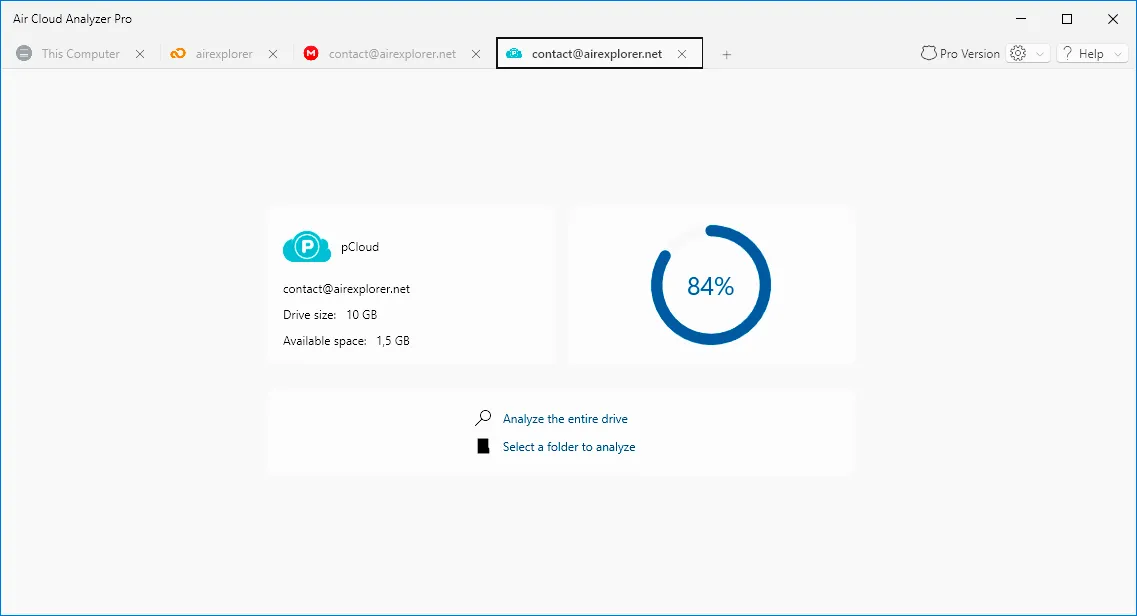
Air Cloud Analyzer lets you analyze the entire drive or select a specific folder. A complete analysis provides the broadest storage profile, while a folder analysis is useful when you only need to investigate one project, shared directory, or problem area.
4. Open the File Types View
After the analysis finishes, open the storage location and select the File Types tab. Review the extensions ordered by size or percentage, compare them in the pie chart, and select a category to see the individual files and their full paths.
Begin with the largest category, but consider both size and count. One huge archive requires a different decision from ten thousand small images, even if both categories occupy similar space.

Make Better Storage Decisions by Content Type
Air Cloud Analyzer’s File Types analysis converts an unclear storage problem into an understandable breakdown of content. It shows what formats dominate, how much capacity they consume, how many files they contain, and where those files are located.
Used alongside Details, Top Files, Duplicated Files, Dates, and Search, it provides the context needed to clean up cloud accounts and local drives safely. When your file types are visible and controlled, storage management becomes faster, more deliberate, and easier to maintain.