
How to Find Duplicate Files in Box Without Downloading Them
Box gives you 10 GB on its free Individual plan, and business accounts share storage across the whole team. Duplicates waste a good part of that space: the same presentation uploaded to three project folders, a contract saved again as contract (1).pdf, or a whole folder copied “just in case”. The problem is that Box has no duplicate finder, and searching by name doesn’t work when the copies have different names.
This guide shows how to find every duplicate in your Box account by its real content hash, in a few minutes and without downloading a single file.
Real hash vs. name and size: why it matters
There are two ways to decide whether two files are duplicates, and the difference is important before you delete anything.
Comparing by name and size. Two files are considered duplicates if they have the same name and the same size. It is fast, but it fails in both directions:
- False positives: two different files can share a name and a size, for example
IMG_0001.jpgfrom two cameras, or twoinvoice.pdffiles generated from the same template. If you delete one, you lose a different file. - Missed duplicates:
budget.xlsxandbudget-final.xlsxwith identical content are not detected because their names differ.
Comparing by hash. A hash is a fingerprint calculated from the content of the file. If even one byte changes, the hash changes. Two files with the same hash have the same content, whatever their name or folder. It is the reliable method, but it normally requires reading the whole file.
This is where Box helps: Box calculates a SHA-1 hash for every file when it is uploaded and returns it with the file list through its API. Air Cloud Analyzer uses that hash directly, so it gets the precision of a content comparison without downloading anything.

Not every cloud service offers this. With services that don’t provide a hash, such as MEGA, FTP or WebDAV, Air Cloud Analyzer falls back to name and size and shows a warning so you know the results need a closer look. With Box, you won’t see that warning.
Step 1: Connect Box to Air Cloud Analyzer
Air Cloud Analyzer is a desktop app for Windows and Mac that analyzes Box and 45 other cloud services, plus your local drives.
- Download Air Cloud Analyzer and install it.
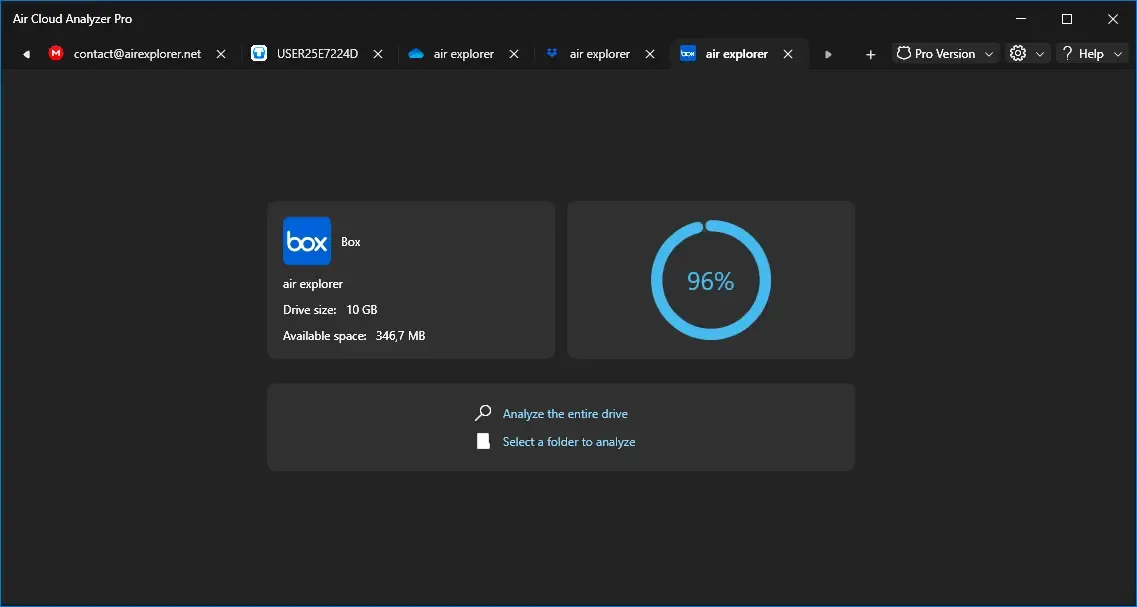
- Click Add account and choose Box.
- Sign in on Box’s official page and authorize access. Your password goes directly to Box, and the access token stays on your computer.
- Choose whether to scan the whole account or a single folder.
The scan reads only metadata such as name, size, path, date and hash, so even large business accounts are analyzed quickly.
Step 2: Open the duplicate files analysis
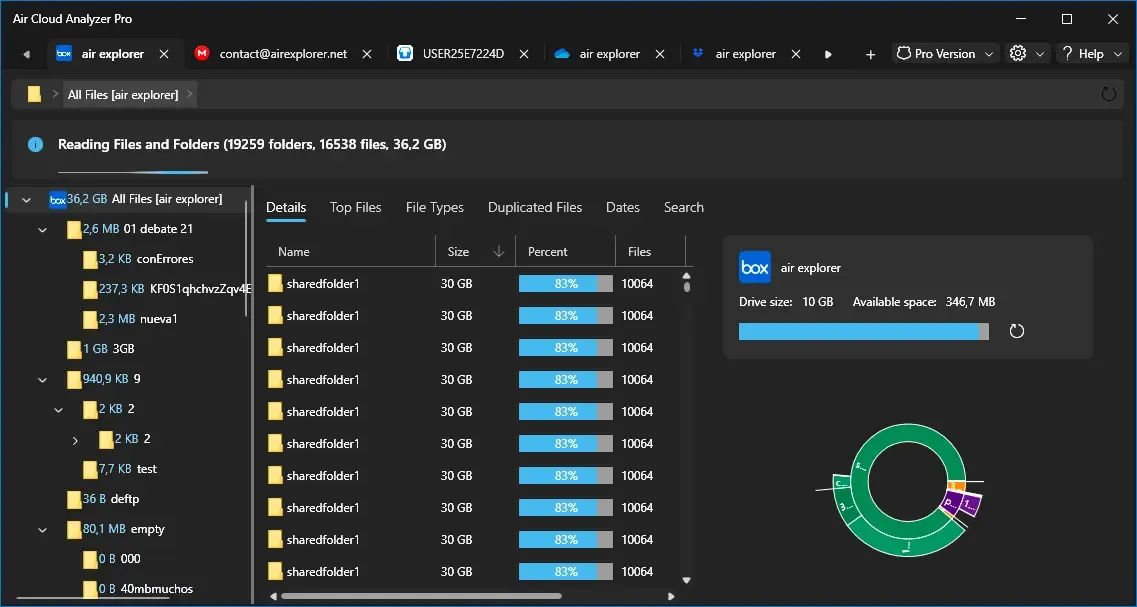
When the scan finishes, open the Duplicated Files tab. Files are grouped by their SHA-1 hash. Each group shows:
- every copy, with its full path in Box,
- the size of the file,
- the total space all the copies take together.
Groups are sorted by total size, largest first, so the biggest wins are at the top. A few duplicated videos or ZIP archives often free more space than hundreds of duplicated documents.
Want to know more about how this view works? Read our guide to the duplicate files analysis.
Step 3: Decide which copy to keep
Before you delete anything, take a look at where each copy lives:
- Keep the copy in the main or shared folder that your team actually uses, and remove copies in personal or “old” folders.
- Be careful with shared folders. In Box, other collaborators may rely on a copy that looks redundant to you. If in doubt, ask the folder owner.
- Check the date. The Dates view helps you spot duplicates that nobody has opened in years.
Step 4: Delete duplicates safely
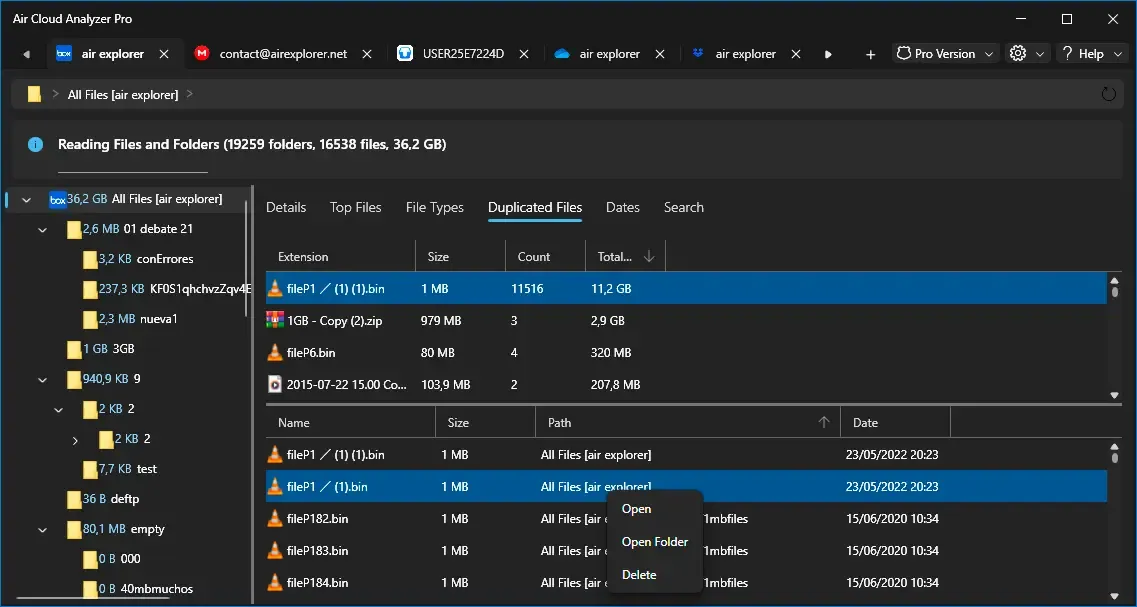
With Air Cloud Analyzer Pro you can delete the extra copies straight from the duplicates view. Deleted files go to Box’s Trash, so you can still restore them if you make a mistake (for as long as your Box plan keeps items in the trash).
With the free version, you can still use the full list of paths to find and delete the copies yourself in Box.
When you are done, refresh the account quota in the app to see how much space you have recovered.
Beyond duplicates
Duplicates are only part of the story. In the same scan you can also:
- see which folders use the most space in the Sunburst chart,
- find the largest files in your account with Top Files,
- check how much space videos, images or documents take with File Types.
Conclusion
Finding duplicates in Box by name is guesswork. By using the SHA-1 hash that Box already calculates for every file, Air Cloud Analyzer only groups files whose content is truly identical, including copies with different names, and it does so without downloading your data.
Download Air Cloud Analyzer for free, connect your Box account and see how much space your duplicates are using.