

Search Analysis: Find and Manage Files Faster
Finding one file is easy when you know its exact folder. It becomes much harder when documents are distributed across deep directories, old projects, cloud accounts, and local drives. A vague filename, unknown extension, or uncertain modification date can turn a simple task into a long folder-by-folder search.
Air Cloud Analyzer solves this problem with its Search analysis. Once a cloud drive, local disk, or selected folder has been analyzed, Search lets you locate relevant files and refine the results using practical filters. It provides the context needed not only to find content, but also to decide what should be organized, preserved, archived, moved, or deleted.
Want to find and manage files across your cloud and local storage more efficiently?
Download Air Cloud AnalyzerWhat Does the Search Analysis Show?
Search completes the six analysis views in Air Cloud Analyzer, alongside Details, Top Files, File Types, Duplicated Files, and Dates. While those reports reveal storage patterns, Search helps you isolate the files connected to a specific task or question.
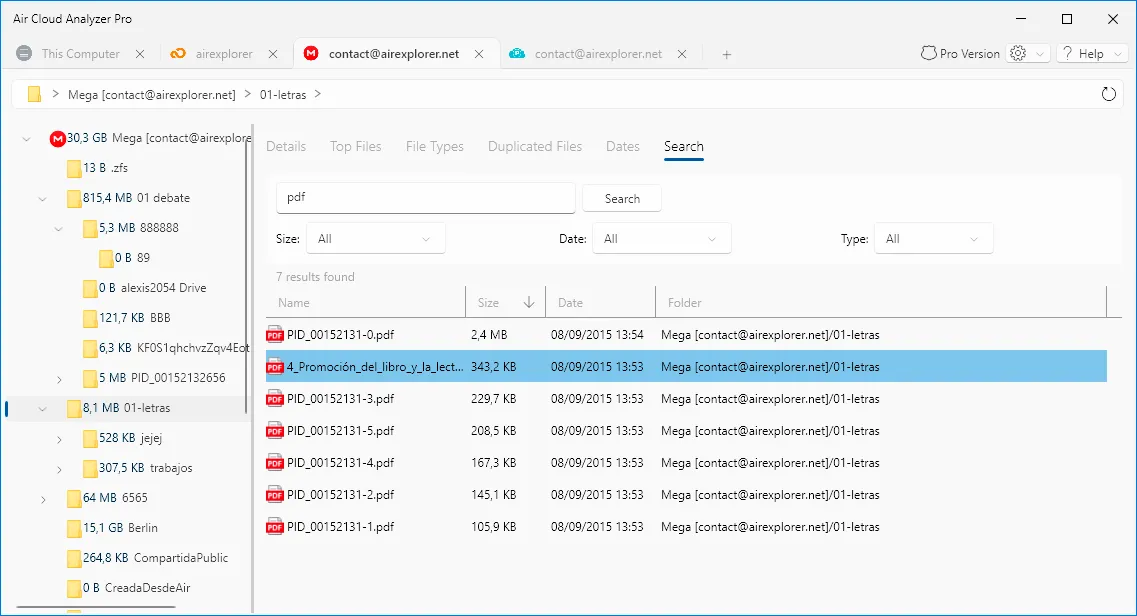
Enter a word, filename fragment, or extension in the search field. The results table shows:
- Name, identifying each matching file.
- Size, revealing its effect on storage capacity.
- Date, helping distinguish recent content from older material.
- Folder, showing where the file is stored.
The folder information transforms a result into something actionable. You can see whether a document belongs to an active project, an archive, a backup, or an unexpected location without manually exploring the entire directory tree.
Search Options for More Precise Results
The search field can be combined with three filters. Using them together reduces irrelevant results and makes large storage locations easier to investigate.
Search by size
The Size filter helps narrow results according to file size. This is useful when a common term produces many matches but you only want to investigate files with a particular storage impact. It can help separate a large exported document from smaller drafts or locate media and archives that deserve priority during cleanup.
Search by date
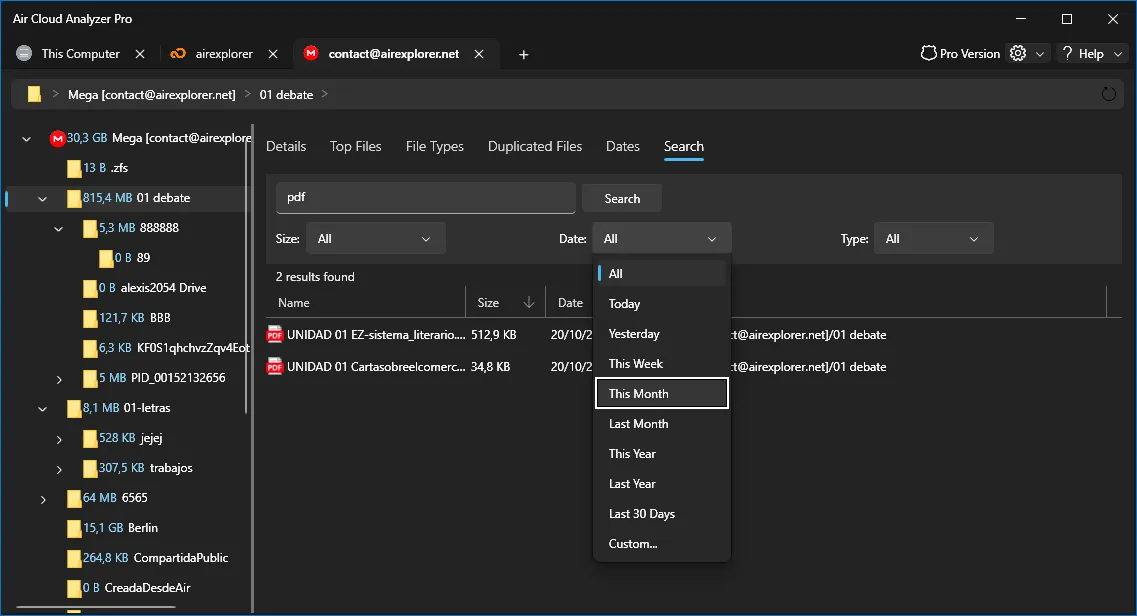
The Date filter offers quick periods such as Today, Yesterday, This Week, This Month, Last Month, This Year, Last Year, and Last 30 Days, plus a Custom option. You can therefore find recently modified work, recover something changed yesterday, or focus on files from a particular period.
Search by file type
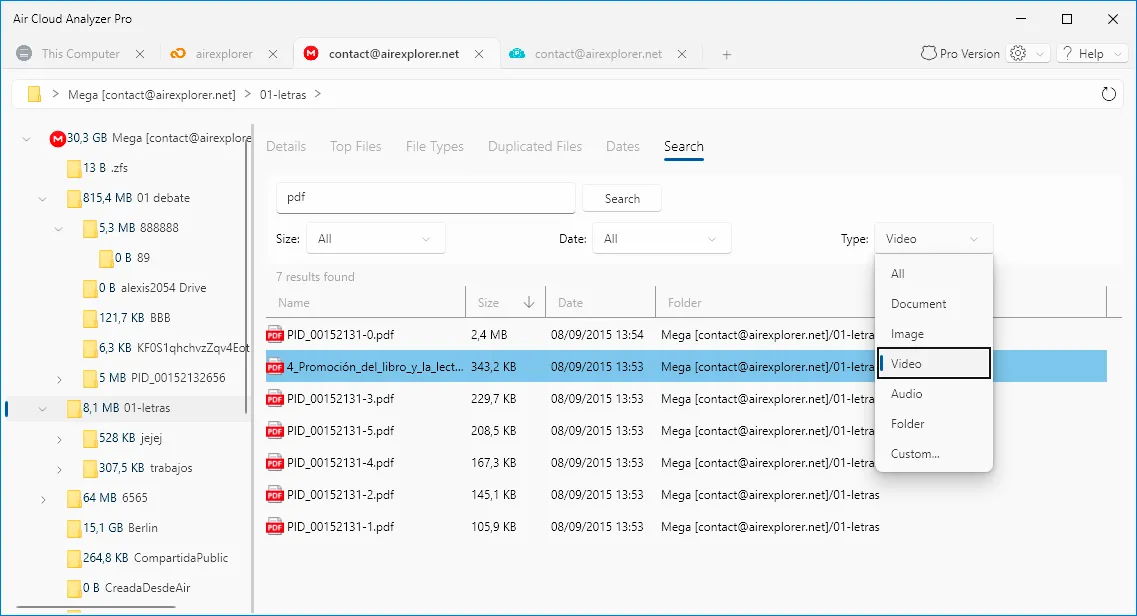
The Type filter can show all results or focus on Documents, Images, Videos, Audio, Folders, or a Custom category. This makes a broad term more useful. For example, a project name may appear in presentations, images, videos, and folders; selecting one type removes unrelated matches.
How to Use Search Step by Step
- Choose the location to analyze. Select a complete cloud or local drive for a broad search, or analyze a specific folder for a focused investigation.
- Open the Search tab. Enter the most useful part of the filename, project name, or extension. A short but distinctive term often finds variations of the same name.
- Add filters gradually. Start with the search term, then apply Size, Date, or Type if the result list is too broad. Over-filtering at the beginning can hide a useful file.
- Review the result columns. Compare names, sizes, dates, and folders. The same filename in different paths may represent separate versions or intentional copies.
- Sort and prioritize. Use the available table ordering to bring larger files or another relevant value into view and decide which results require attention first.
From Search Results to Better File Management
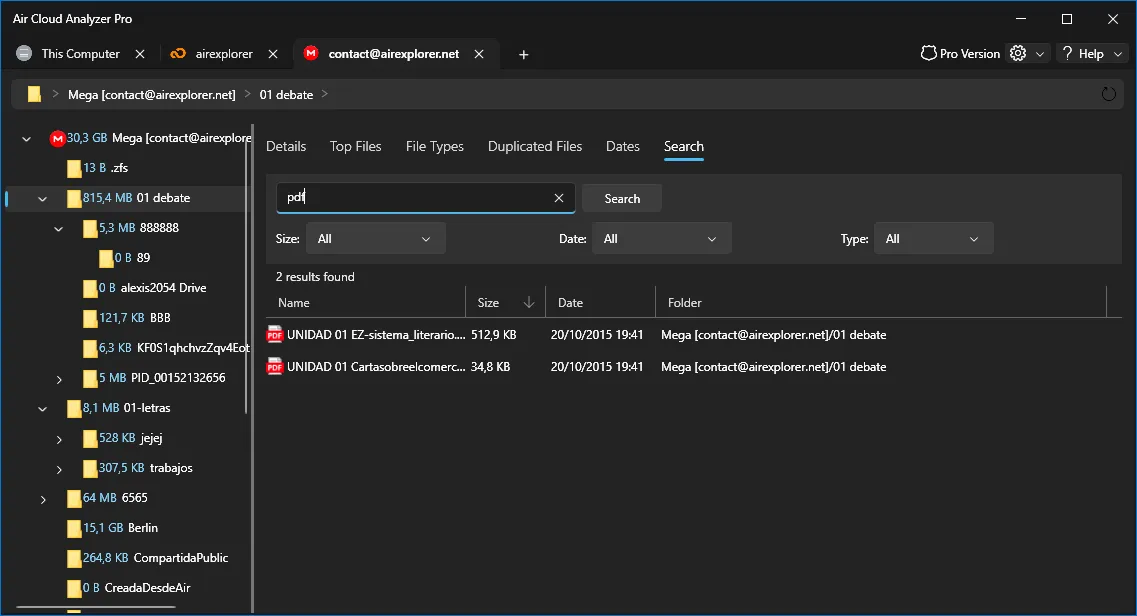
Search becomes most valuable when its results guide a clear action. The folder column helps you identify misplaced content and plan a better directory structure. Related documents can be gathered into a consistent project folder, while completed work can be moved to an archive. Important files can be kept in their current location or included in an appropriate backup routine.
Search also supports safe deletion. You can locate obsolete exports, temporary versions, old installers, or files matching an extension you no longer need. Before removing anything, compare the path and date, confirm that another user or application does not depend on it, and verify that an important copy exists when necessary. Search identifies candidates; it does not make the retention decision for you.

For repeated files, combine Search with Duplicated Files. For unexpected storage consumption, use Top Files or File Types first, then search for the names or formats you want to investigate. Dates can identify a relevant period before Search narrows the list further.
Find Files with Context, Not Guesswork
Air Cloud Analyzer’s Search analysis combines a flexible search term with size, date, and type filters. Its results show what each file is, how much space it occupies, when it was modified, and where it is stored. This context saves time and reduces the risk of organizing or deleting the wrong content.
Used as part of a regular storage-management routine, Search helps turn scattered files into an understandable working set. You can find information faster, organize folders more consistently, preserve valuable documents, archive completed work, and remove confirmed unnecessary files with greater confidence.