

How to Free Up Space in Dropbox: Find Large Files and Duplicates
Dropbox Basic gives you only 2 GB, and even a 2 TB Plus plan fills up faster than you expect. When the “Your Dropbox is full” message appears, syncing stops and new files no longer upload. Dropbox tells you how much space you use, but not what is using it. To find out, you would have to open folders one by one.
This guide explains why Dropbox fills up and how to find the large files, duplicates and old folders taking up your space in a few minutes, without downloading anything.
Why your Dropbox fills up
These are the usual causes, roughly in order of impact:
- Camera Uploads. If you turned on photo backup on your phone, every photo and video is saved at full resolution. A few years of 4K video can take hundreds of gigabytes.
- Shared folders. This is the one that surprises most people. In Dropbox, a folder someone shares with you counts against your quota, not just the owner’s. Joining a big team or family folder can fill a Basic account in seconds.
- Large one-off files. Video exports, disk images (ISO, VMDK), old project archives and phone backups.
- Duplicates. The same file saved in two folders, or copied again “just in case” from several computers.
- Old files. Documents and archives that nobody has opened in years but that never get deleted.
Good news: deleted files don’t count against your storage. Once you delete something, the space is freed, and you can still restore it for the period your plan allows.

Step 1: Connect Dropbox to Air Cloud Analyzer
Air Cloud Analyzer is a desktop app for Windows and Mac that analyzes Dropbox and 45 other cloud services, plus your local drives.
- Download Air Cloud Analyzer and install it.
- Click Add account and choose Dropbox.
- Sign in on Dropbox’s official page and authorize access. Your password goes directly to Dropbox, and the access token stays on your computer.
- Choose whether to scan the whole account or a single folder.
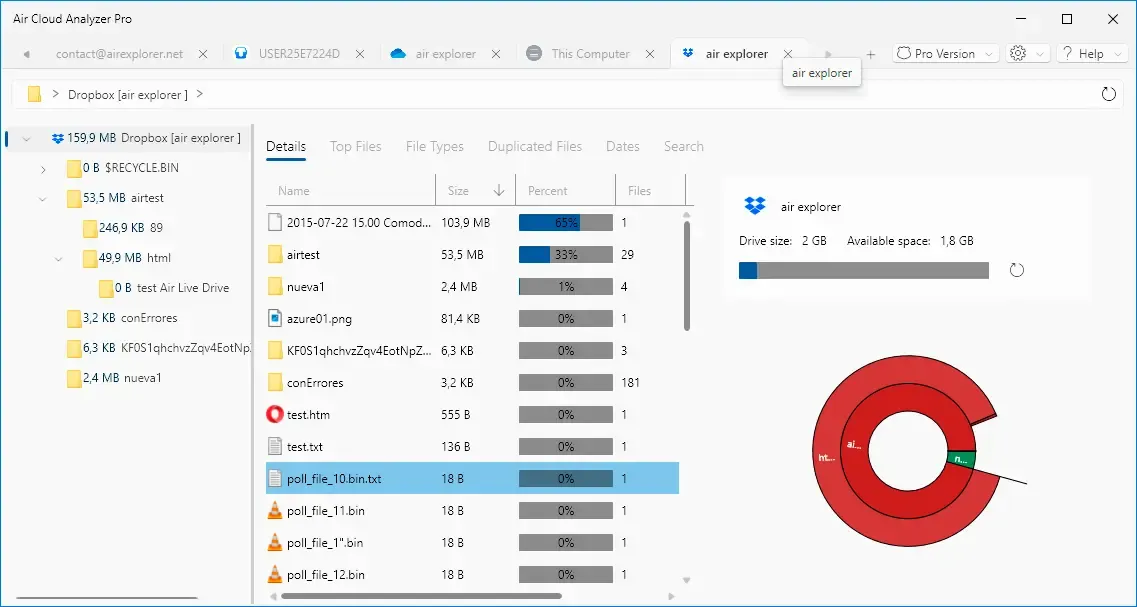
The analysis reads only metadata such as name, size, path and date, so even accounts with hundreds of thousands of files are scanned without downloading a single byte. The app also shows your Dropbox quota (total space and free space), so you can see how much is left before and after cleaning.
Step 2: See which folders use the most space
The first view is a Sunburst chart: each ring is a folder level and each segment is proportional to its size. In seconds you will see whether the problem is Camera Uploads, a shared folder or an old project. Click any segment to zoom in until you find the exact subfolder.
Step 3: Find the largest files in Dropbox
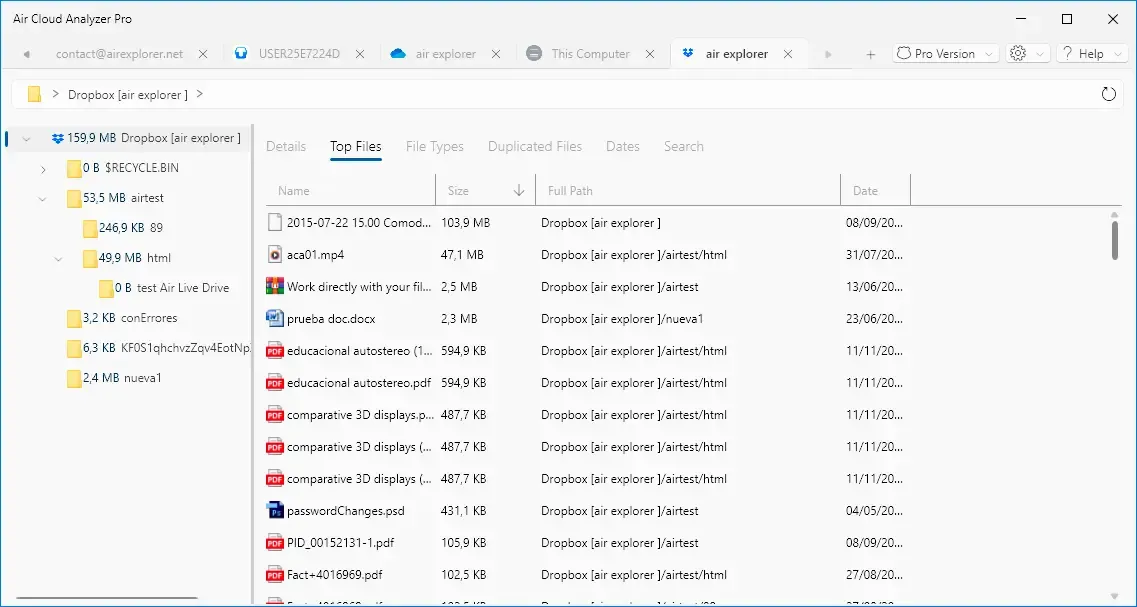
Open Top Files to see the largest files in your whole account, sorted by size. This is usually the fastest win: deleting three or four forgotten videos or archives frees more space than cleaning up hundreds of documents. Read more in our guide to the Top Files analysis.
If you are looking for something specific, use Search with the size filters (from Tiny to Gigantic) and extensions, for example every .mp4 or .mov file in the largest size range.
Step 4: Find duplicate files in Dropbox
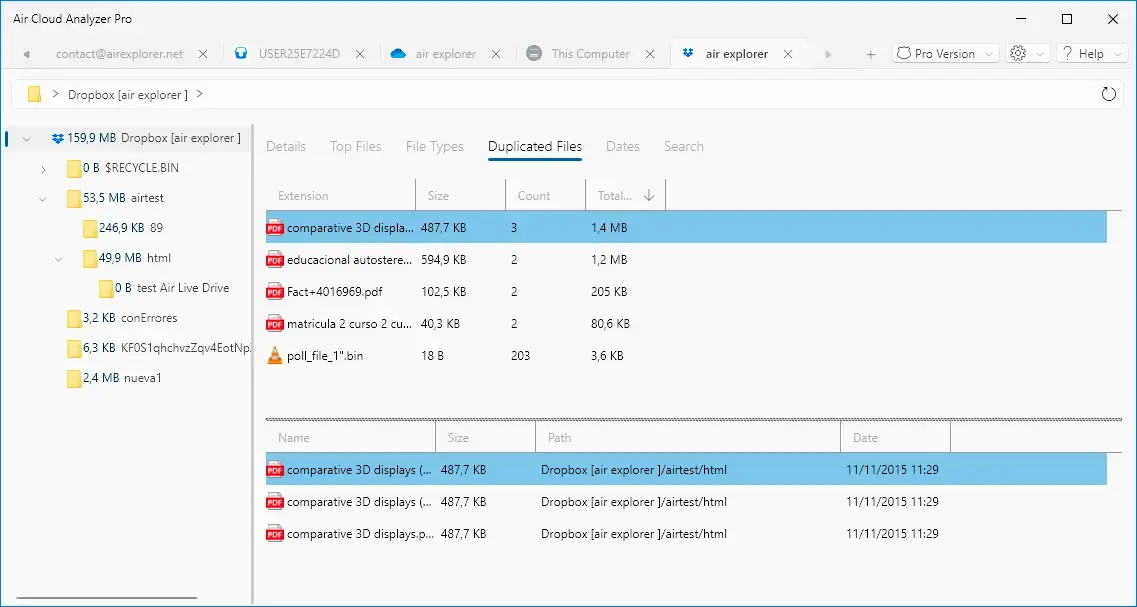
Dropbox doesn’t have a duplicate finder. Air Cloud Analyzer does, and with Dropbox it works especially well: it compares files by their content hash, the fingerprint Dropbox calculates for each file. Two files are only grouped as duplicates if their content is identical, even if they have different names or live in different folders. You won’t confuse two different photos that happen to share a name like IMG_0001.jpg.
Each group shows how much space you would free by keeping a single copy. See how it works in the duplicate files analysis.
Step 5: Review file types and old files
- File Types shows how much space videos, photos, documents, archives and so on take. If videos use 70% of your Dropbox, you already know where to look.
- Dates groups files by modification date, with ranges such as last year or older, so you can find the archives that nobody has touched in years. Learn more about the date analysis.
Step 6: Clean up safely
Before you delete anything:
- Leave shared folders you no longer need instead of deleting their contents, so other members keep their files.
- Turn off Camera Uploads or move old photos to a local drive or a cheaper storage service.
- Delete large files and extra copies. With Air Cloud Analyzer Pro you can delete them straight from any view. Files go to Dropbox’s deleted files, where you can still restore them.
Then refresh the quota in the app to check how much space you have recovered.
Conclusion
A full Dropbox doesn’t always mean you need a bigger plan. Usually a few large files, a shared folder and a handful of duplicates account for most of the space. With a map of your account, you can decide what to keep in minutes.
Download Air Cloud Analyzer for free, connect your Dropbox and find out what’s taking up your space today.