

Is Your Cloud Storage Full? Find What Is Taking Up Space Before You Pay for More
Your cloud storage is full. A warning appears, uploads stop working, and the provider offers a convenient solution: pay for a larger plan. Sometimes that is the right answer. But before turning a temporary storage problem into a recurring monthly cost, ask a more useful question: what is actually using the space?
A storage bar rarely tells the whole story. A few forgotten videos, an old phone backup, duplicate folders, or archived project files can consume most of an account without appearing in the top-level folder. Air Cloud Analyzer turns that vague warning into a clear inventory, so you can decide whether to clean up, archive, move files, or upgrade with confidence.
Start with evidence, not the upgrade button
Storage limits create urgency, and urgency encourages quick decisions. A full account does not automatically mean that you need more capacity; it may mean that you need a better view of the capacity you already have.
Connect the account that is close to its limit and open the storage overview in Air Cloud Analyzer. The visual map shows how space is distributed through folders, making unusually large branches stand out. Instead of opening folders one by one and guessing, you can start with the areas most likely to make a difference.
Check the largest files first
When you need room quickly, the largest-files list is usually the best starting point. One disk image, video export, compressed archive, or backup can be bigger than thousands of documents combined. Sort by size and review the first results before spending time on minor files.
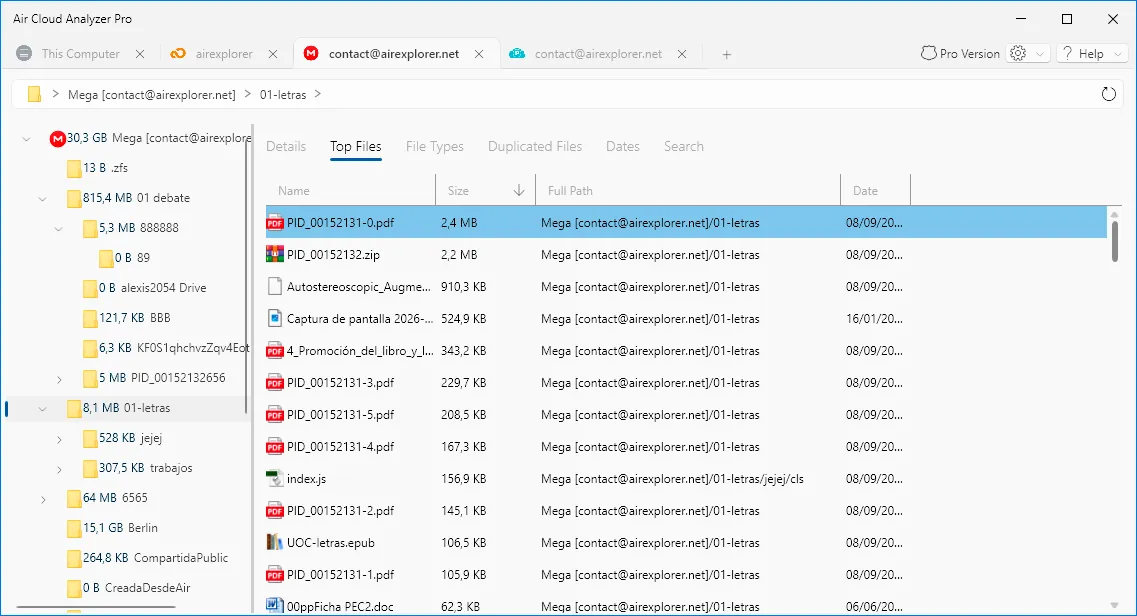
For every large file, ask:
- Do I still need this version?
- Is there a newer copy elsewhere?
- Can I recreate this export from the original project?
- Could it be archived to a local drive?
- Is this the only copy of something important?
That final question matters. A file that looks old can still be critical, and freeing a few gigabytes is never worth removing the only copy of valuable data. Analysis should lead to informed decisions, not indiscriminate deletion.
Use file types to find the pattern
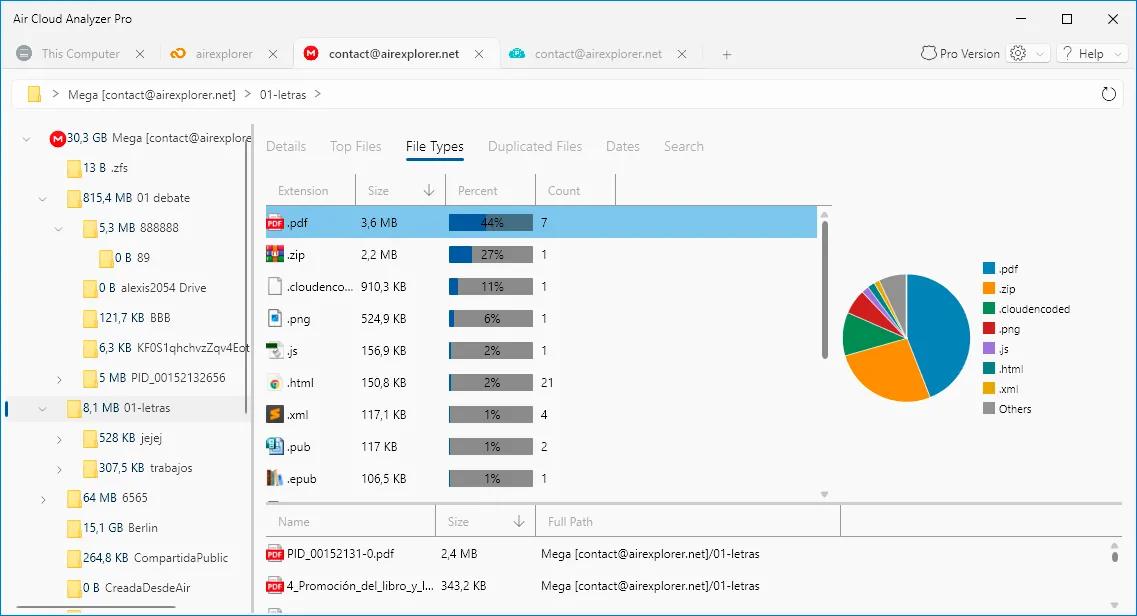
Large-file lists identify individual candidates; file-type analysis reveals the pattern behind them. If videos use most of the space, perhaps screen recordings, family footage, or completed exports need a retention plan. If archives dominate, you may have repeated backups or project packages kept “just in case.” A photo-heavy account may reveal burst shots, edited copies, or device backups that have accumulated over time.
Review old files without assuming they are disposable
Date analysis creates a useful review queue. Filter for files that have not been modified in a year, two years, or longer, then inspect them in context. Old downloads, temporary exports, former-client folders, and superseded backups are often good candidates.
Age is not a deletion rule. Tax records, legal documents, source materials, and long-term personal archives may need to stay. For shared or business accounts, consider retention rules and whether another person still depends on the file. The date view surfaces forgotten material; it does not label everything old as clutter.
Find possible duplicates across your storage
Duplicates are hard to notice when files live in different folders or accounts. You may have copied the same presentation to a shared drive, uploaded it again after a rename, and saved another version in a backup folder. Each copy looks reasonable alone; together, they quietly use space.
Use duplicate analysis in Air Cloud Analyzer to identify files that deserve comparison. Check the location, name, and purpose of every result before deleting anything. Two matching files may be intentional if one belongs to a backup strategy or shared project. The tool finds candidates; the decision remains yours.

Search before deleting or moving
When a large or old file looks unnecessary, use search to check whether related copies already exist elsewhere. A unified view of connected cloud accounts and local drives is much easier than repeating the same search in every provider. It can answer questions such as: “Do I already have this archive on my computer?” or “Which version of this project is the latest?”
Decide whether an upgrade is really necessary
After reviewing the largest files, storage categories, old data, and potential duplicates, you can choose the next step based on evidence. Clean up clearly redundant files. Archive data you want to keep but do not need immediately. Move files when another suitable location is part of your strategy; Air Explorer can help transfer, synchronize, and back up files between cloud services. Upgrade when the remaining data is active, valuable, and truly exceeds your current capacity.
A short analysis keeps cleanup safer and upgrades deliberate.
See what is filling your cloud storage before you pay for more.
Download Air Cloud Analyzer