

How to Use TeraBox with Air Cloud Analyzer
TeraBox works with Air Cloud Analyzer through a simple connection: add your TeraBox account, authorize access, and scan the entire drive or one folder. Air Cloud Analyzer then turns your file metadata into visual, searchable reports, so you can quickly find the folders, file types, large files, old content, and possible duplicates consuming your storage.
The combination is especially useful when a generous cloud account has become too large to understand manually. Instead of opening hundreds of folders, you get a clear map of your TeraBox files and can act on the results from one desktop interface.
Why Use TeraBox Instead of Another Cloud?
TeraBox’s standout advantage is capacity. Its official site currently advertises 1024 GB of cloud storage for the basic version. By comparison, official support pages list up to 15 GB for a personal Google Account, 5 GB for a free Microsoft account, and 2 GB for Dropbox Basic. Plans and limits can change, but the difference makes TeraBox attractive for large photo libraries, videos, archives, and backups that would quickly fill a smaller free account.
Capacity is not the only consideration. TeraBox also provides web, desktop, and mobile access, file sharing, synchronization, and backup features. Other providers may be a better fit when deep office-suite integration or team collaboration matters most. TeraBox is compelling when your priority is a large amount of cloud space at a low starting cost.
How Do You Add TeraBox to Air Cloud Analyzer?
1. Select TeraBox
Open Air Cloud Analyzer, go to Accounts, and click Add Cloud Account. Find TeraBox in the provider list and select it.
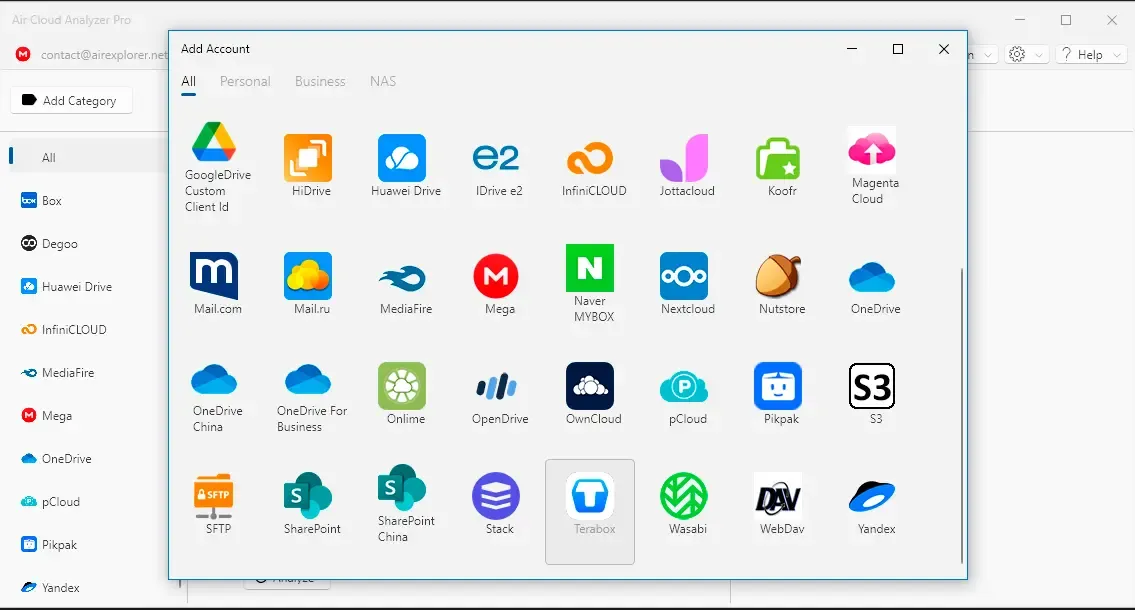
2. Sign In and Authorize Access
Complete the TeraBox sign-in screen that opens and approve the requested access. Return to Air Cloud Analyzer after authorization; the program verifies the connection and adds the account to your list. Never enter credentials anywhere except the official authorization flow.

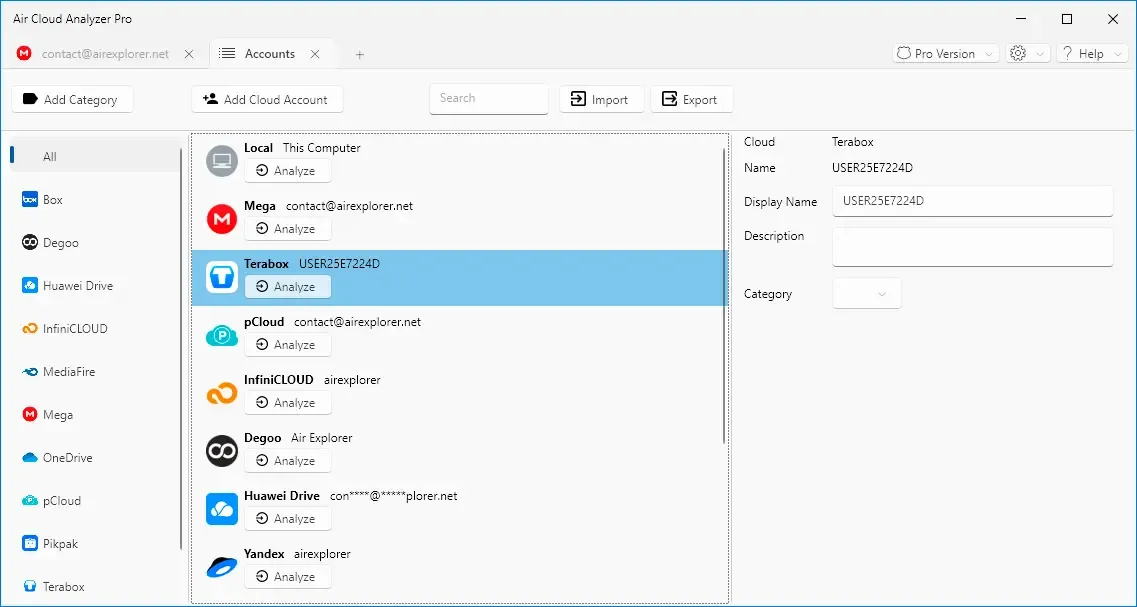
3. Confirm the Connected Account
Your TeraBox account now appears beside your other cloud services and local computer. You can change its display name, add a description, or assign a category, handy if you manage several accounts.
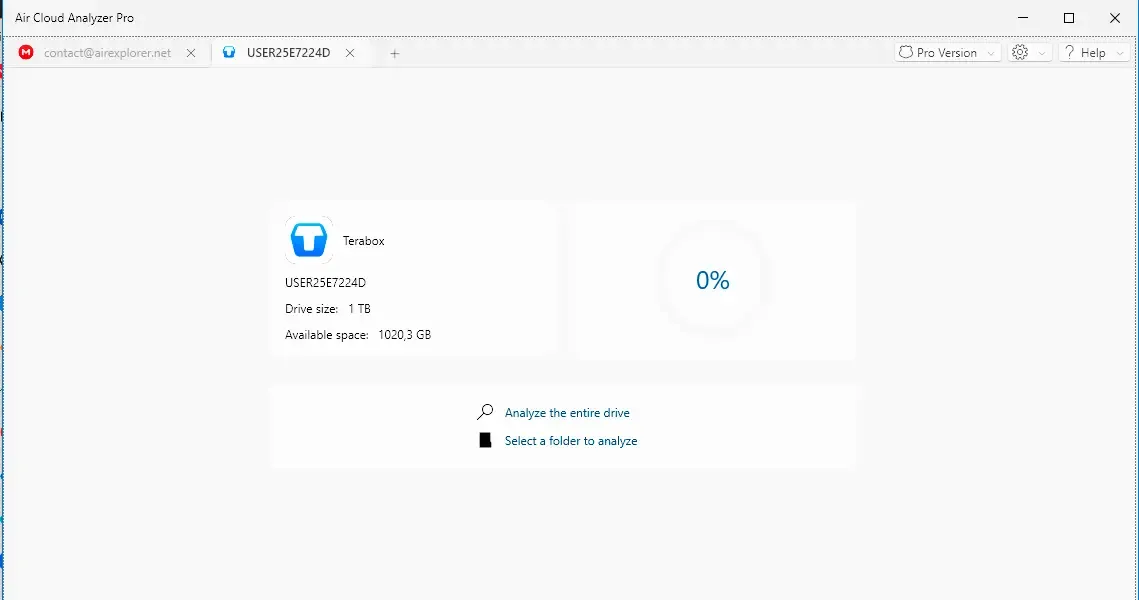
4. Choose What to Analyze
Click Analyze. Select Analyze the entire drive for a complete storage audit, or Select a folder to analyze when you only need to inspect a project, media library, or backup directory. Large accounts can take longer because the application must read their folder and file information.
What Can You Learn from the Six Analysis Types?
Air Cloud Analyzer provides six complementary views. Start with Details to browse the folder tree, compare sizes and percentages, and follow the Sunburst chart toward the branches using the most space.
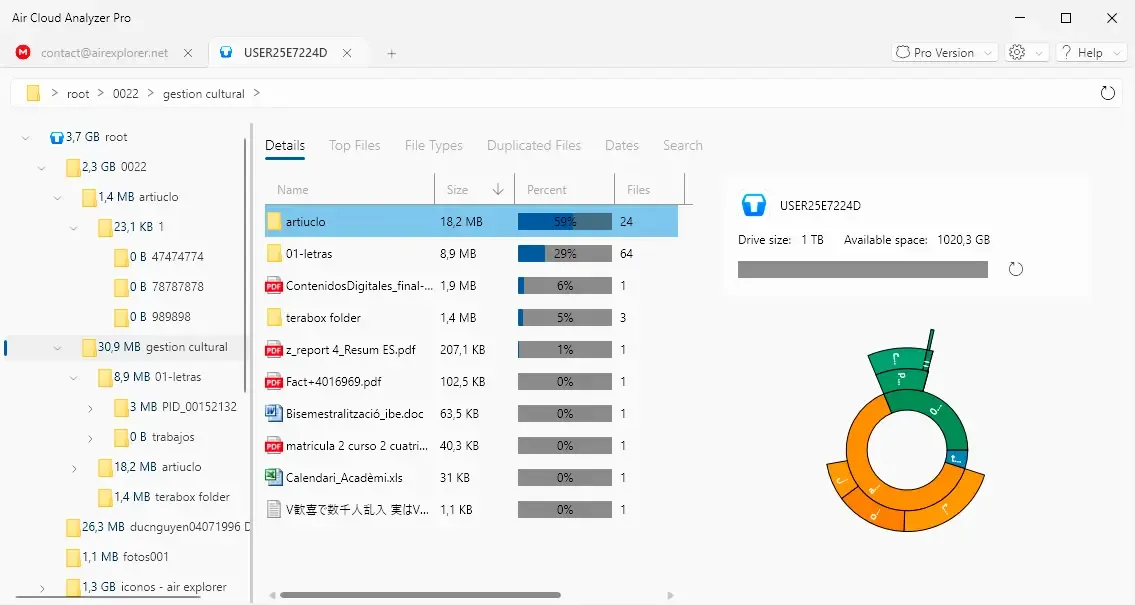
Then use the other reports to answer specific questions:
- Top Files: Which individual videos, archives, or backups occupy the most space?
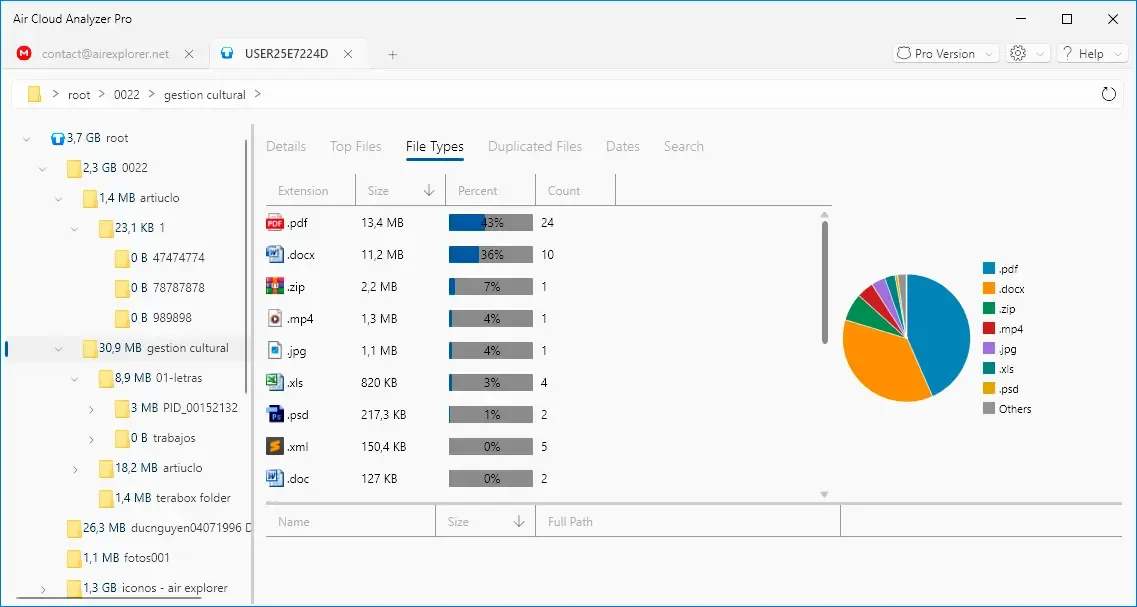
- File Types: Is your TeraBox dominated by PDFs, images, videos, ZIP files, or another format?
- Duplicated Files: Are possible redundant copies wasting capacity?
- Dates: Which content is old, recently modified, or connected to a period of rapid storage growth?
- Search: Where are files matching a name, size, date, type, or custom extension?
How Do You Manage TeraBox Files from the Results?
Analysis turns a crowded drive into a prioritized action list. Begin with the largest folder, inspect its Top Files, and use File Types or Dates to narrow the review. Search can then locate a specific project or format. From the results, you can open a file, open its containing folder, or delete selected files when the provider supports that action.
Treat every deletion as a decision, not an automatic cleanup. A large or old file may still be valuable, and two files with the same name and size are not always identical. Confirm the path, ownership, backup status, and sharing requirements first. Refresh the analysis afterward to see the recovered space.
Ready to turn your TeraBox storage into a clear, actionable map?
Download Air Cloud AnalyzerFrequently Asked Questions
Can Air Cloud Analyzer connect directly to TeraBox?
Yes. Choose TeraBox in Add Cloud Account, complete the official sign-in and authorization process, and the account will appear in your Accounts view.
Does the analysis download every TeraBox file?
No. Air Cloud Analyzer reads metadata such as names, sizes, paths, extensions, and modification dates. It does not need to download every file’s contents to build the reports.
Can I analyze only one TeraBox folder?
Yes. Choose a single folder for a faster, focused scan, or analyze the entire drive for the most complete overview.
Can I delete TeraBox files from the results?
You can open files, open their folders, or delete selected files when the provider supports the action. Review every item first because deletion behavior can depend on TeraBox and account settings.
Make 1 TB Feel Easy to Manage
TeraBox gives storage-hungry users room to grow; Air Cloud Analyzer gives that room structure. Together, they replace folder-by-folder guesswork with visual evidence and focused searches. Connect the account, run the right analysis, review the results carefully, and your TeraBox can remain spacious, organized, and useful long after the first upload.