
How to Organize Files on Your PC with Air Cloud Analyzer
Your computer can become difficult to manage long before its disk is completely full. Downloads, work documents, photos, installers, backups, and old folders build up in different locations. File Explorer can open them, but it does not always show which folders use the most space or where a file is hiding.
Air Cloud Analyzer is known for cloud-storage analysis, but it also analyzes the files on your PC. It gives local drives and selected folders the same visual reports used for cloud accounts, helping you understand storage and find documents without opening folders one by one.
Ready to understand what is stored on your computer?
Download Air Cloud AnalyzerStart with This Computer
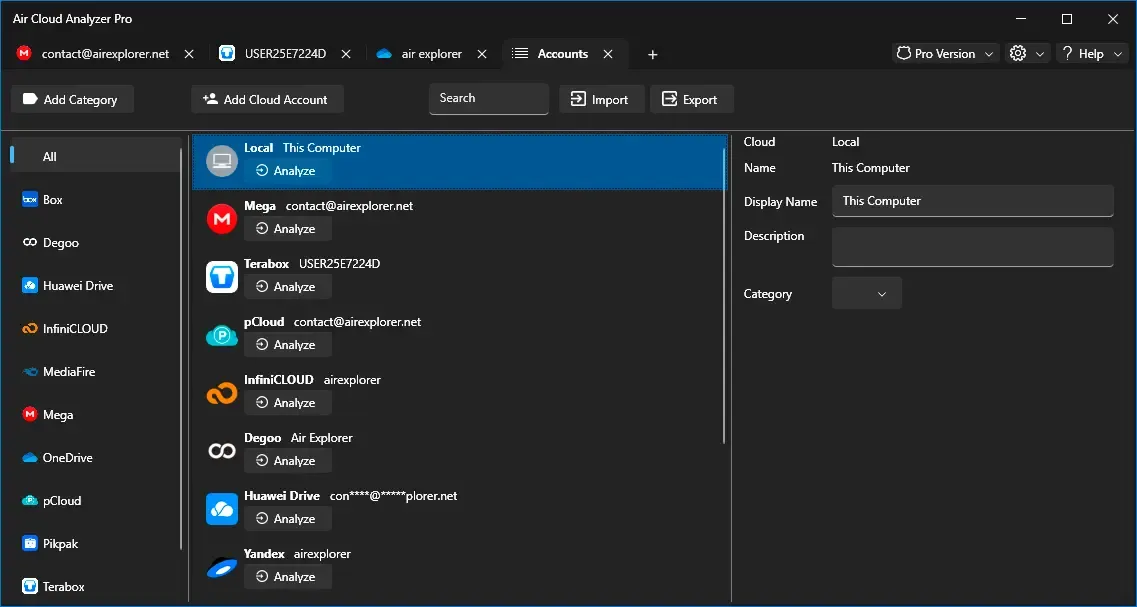
From the Accounts view, choose This Computer and select Analyze. Local storage appears alongside connected cloud accounts, so both use the same workflow.
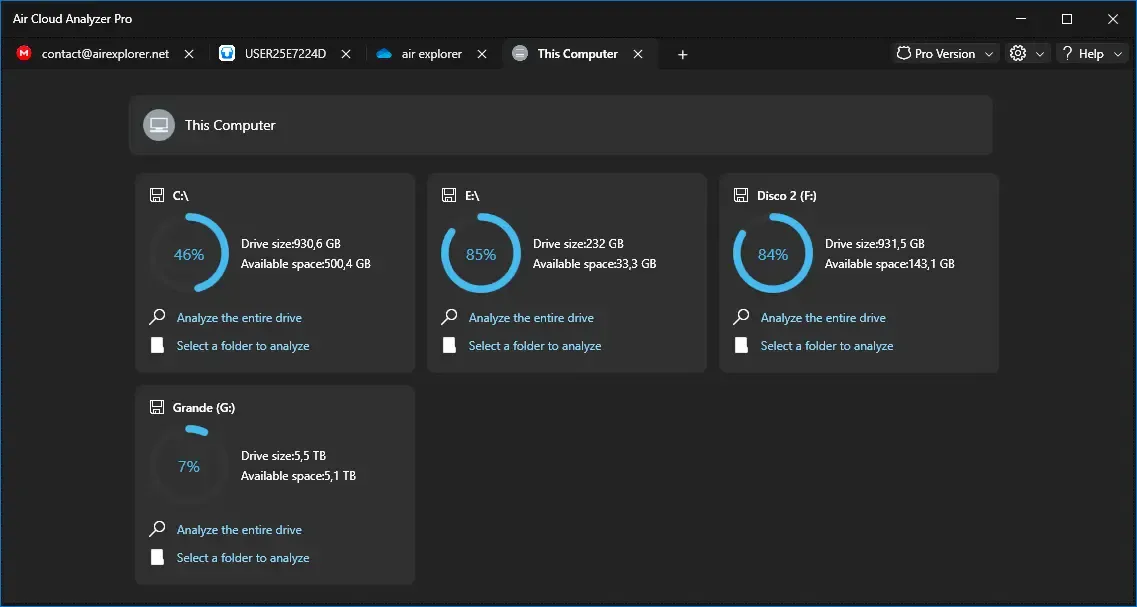
The next screen lists your drives and free space. Select Analyze the entire drive for a complete picture, or Select a folder to analyze for Documents, Downloads, a project directory, or another known area.
Once the scan has read the files and folders, use the analysis tabs to turn a long directory tree into useful information.
The six analysis views for local files
Air Cloud Analyzer includes six views that work together on your PC:
- Details shows the folders and files within the location you analyzed, together with their size, percentage of used space, and file count.
- Top Files brings the largest individual files to the front, helping you spot disk images, videos, archives, or old installers that deserve review.
- File Types groups content by format, so you can tell whether documents, images, videos, audio, compressed files, or another category are using the space.
- Duplicated Files identifies possible repeated files. Check every result carefully: a copy may be intentional or part of a backup.
- Dates helps you review files by age or modification period, which is useful for completed projects and forgotten downloads.
- Search locates particular files by name, size, date, and type when browsing folders would be slow.
Use Details to see what is really on your drive
The Details tab is the best place to start because it shows how storage is distributed. Follow the drive structure in the folder tree on the left. The central table lists each item’s Name, Size, Percent, and, for folders, the number of contained Files. Sort by size to put the biggest storage users first and compare their impact with the percentage bars.
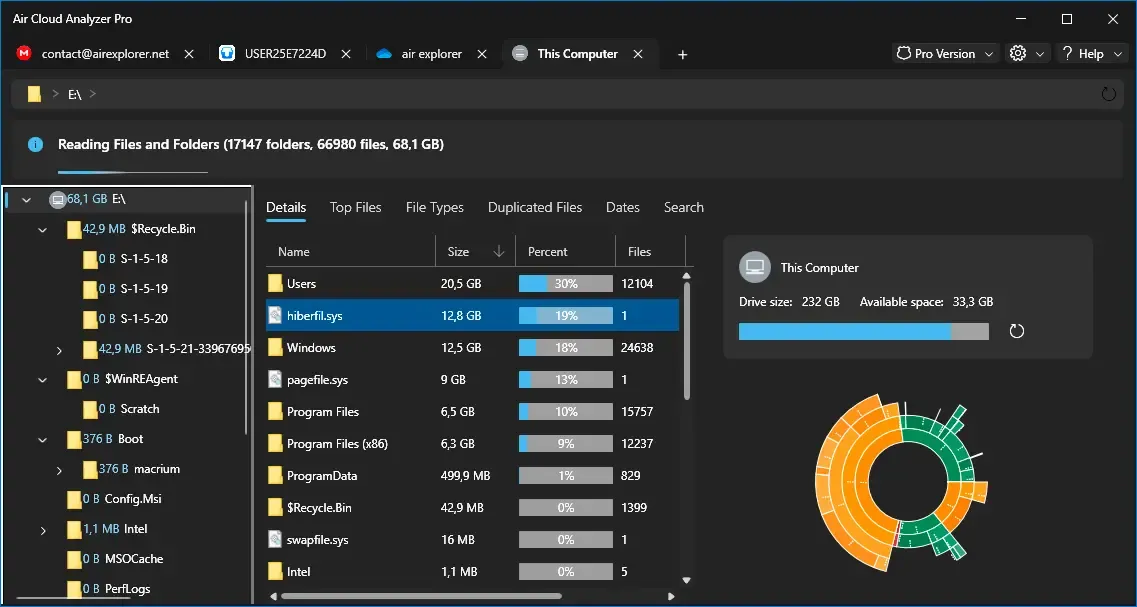
The visual storage map makes large branches of the hierarchy stand out. You can see whether space is concentrated in a user profile, program folder, backup area, recycle bin, or another location. The drive panel shows capacity and free space, helping you assess urgency.
This is more effective than deleting small files at random. One old backup, virtual disk, or forgotten video collection can recover more space than hundreds of minor downloads. Details tells you which folders to review before making changes.
Find documents and files without guessing their location
The Search tab is useful when you remember part of a filename but not its folder. Enter a word, filename fragment, or extension such as .pdf. Results show the matching Name, Size, Date, and Folder.
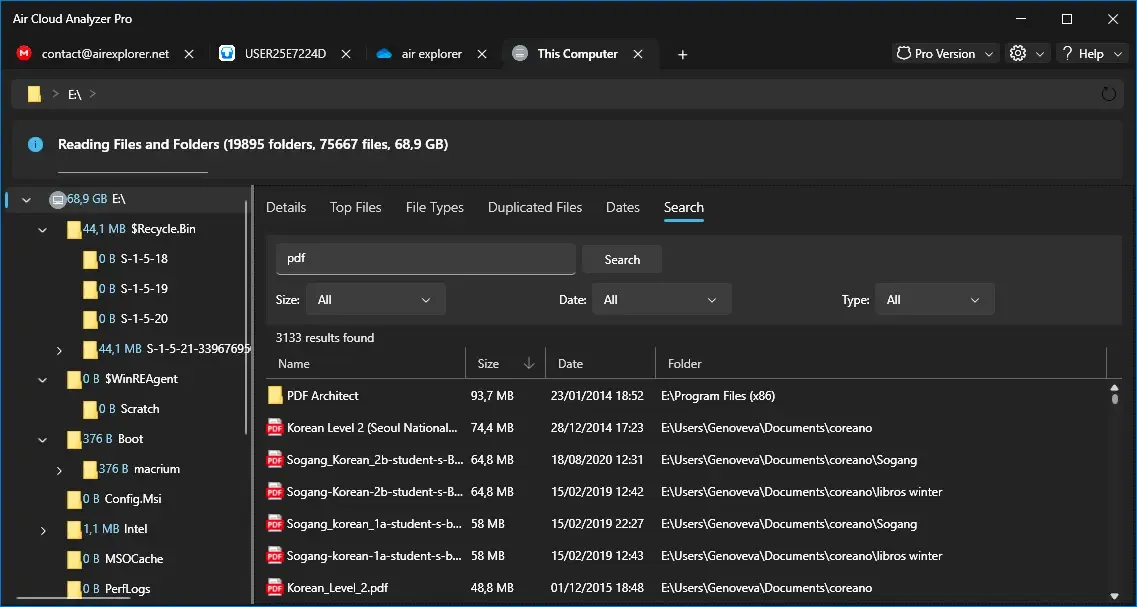
Use the filters gradually to narrow a broad list:
- Size helps separate a large export or archive from smaller drafts with similar names.
- Date lets you focus on recent work, an older project, or a time period you remember.
- Type limits results to categories such as documents, images, videos, audio, folders, or a custom type.
For example, search for invoice, restrict the results to documents and the relevant year, or search for .zip, sort by size, and review old archives. The Folder column tells you where each item lives, so you can gather related files, archive finished work, or verify an important document is backed up.
Why locating files makes a difference
Knowing where files are saves time re-creating documents, reduces uncontrolled versions, and makes important work easier to protect. Before deleting anything, compare the path, date, and size, and confirm that the item is not needed by an application, another person, or a backup routine.
Make this a simple routine: analyze a full drive periodically, use Details to identify large folders, check the other reports when a pattern needs attention, and use Search whenever a file’s location is unclear. Air Cloud Analyzer gives you the visibility to make careful decisions confidently.
When your local files are visible, searchable, and understood, organizing your computer becomes a manageable process rather than a frustrating hunt through folders.