

How to Analyze Cloud Storage and Free Up Space
Cloud storage is easy to fill and surprisingly difficult to understand. Large videos, old backups, duplicate photos, and forgotten project folders can be spread across several accounts, making it hard to see what is consuming your space.
Air Cloud Analyzer is a desktop storage analysis tool that shows which files, folders, and file types use the most space across connected cloud accounts and local drives. It analyzes file metadata without downloading file contents, helping you find large, old, or duplicate files from one dashboard.
Why Is Cloud Storage So Difficult to Manage?
Every cloud service provides its own storage view, but that view usually covers only one account. If you use Mega for personal files, OneDrive for work, Dropbox for shared folders, and a local drive for backups, there is no obvious place to see the complete picture.
This fragmentation creates several common problems:
- You cannot easily compare storage use across different accounts.
- Large files remain hidden inside deeply nested folders.
- The same file may exist in more than one cloud service.
- Old backups continue consuming space long after they are needed.
- It is difficult to decide what to review before paying for a larger storage plan.
A cloud storage analyzer brings that information together so you can make cleanup decisions based on evidence rather than guesswork.
What Does Air Cloud Analyzer Do?
Air Cloud Analyzer connects to supported cloud accounts and can also analyze local storage. It organizes file metadata such as names, sizes, types, and dates into visual reports and searchable lists.
Because the analysis uses metadata, Air Cloud Analyzer does not need to download the contents of every file just to calculate storage use. This makes it possible to inspect large accounts without creating another local copy of the data.
The main analysis views help you:
- See how storage is distributed across accounts and folders.
- Find the largest files first.
- Group storage use by file type.
- Locate files by name, size, type, or date.
- Identify potential duplicate files.
- Compare cloud storage with files on a local drive.
How to Analyze Cloud Storage and Free Up Space
The safest cleanup process is to identify the biggest opportunities first and review every file before removing it.
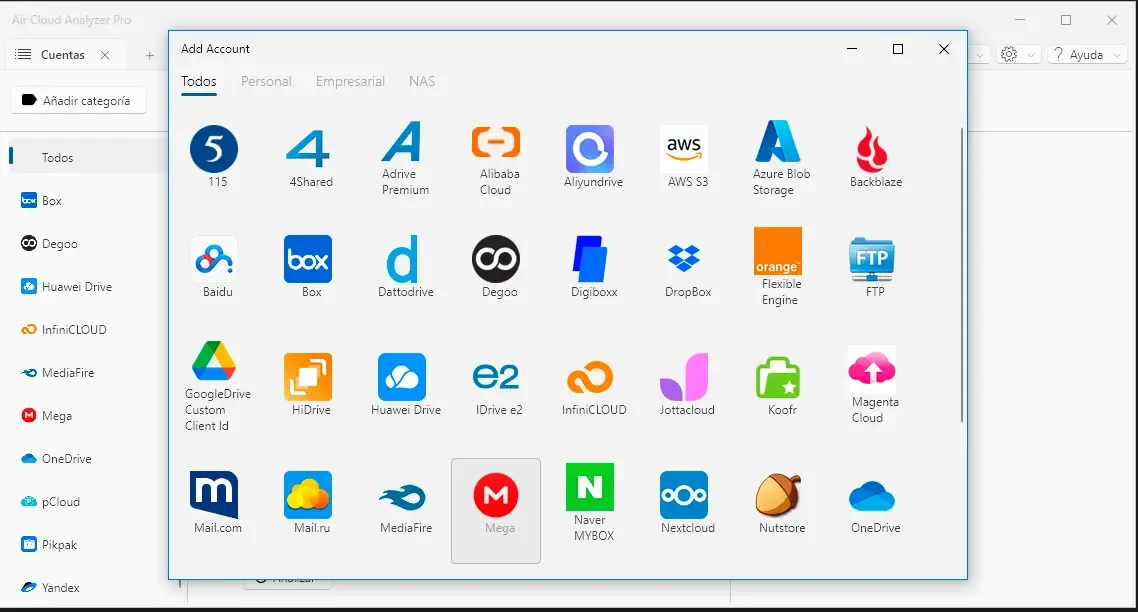
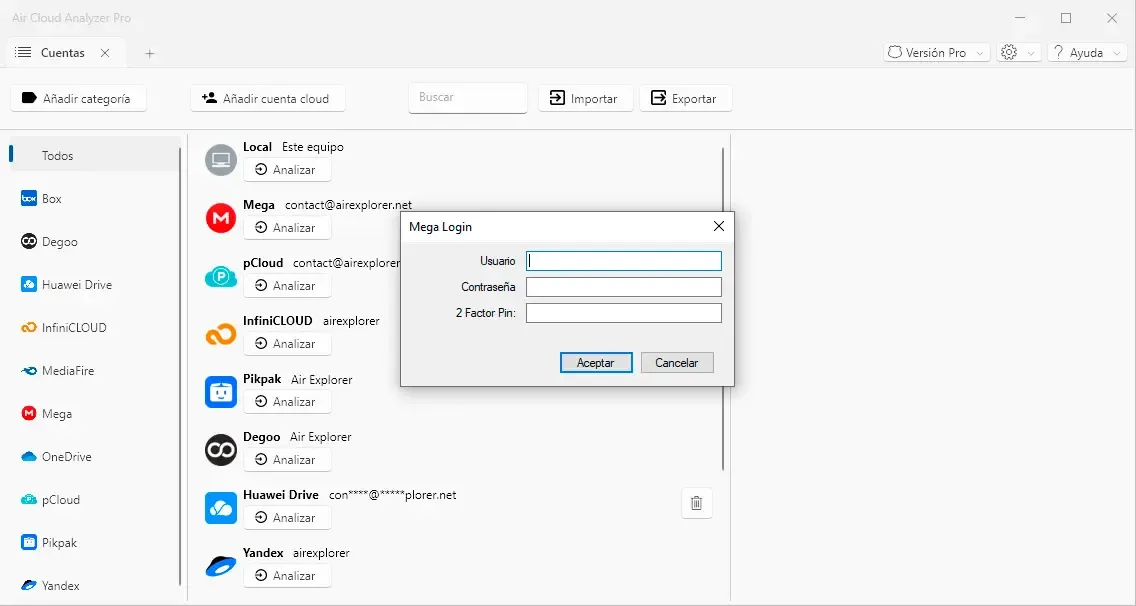
1. Connect the Accounts You Want to Analyze
Install Air Cloud Analyzer and connect the cloud accounts you want to inspect. Start with the accounts that are closest to their storage limits or that contain the largest volume of files.
If you also want to compare cloud and local storage, include the relevant local drive or folder in the analysis.
2. Review the Storage Overview
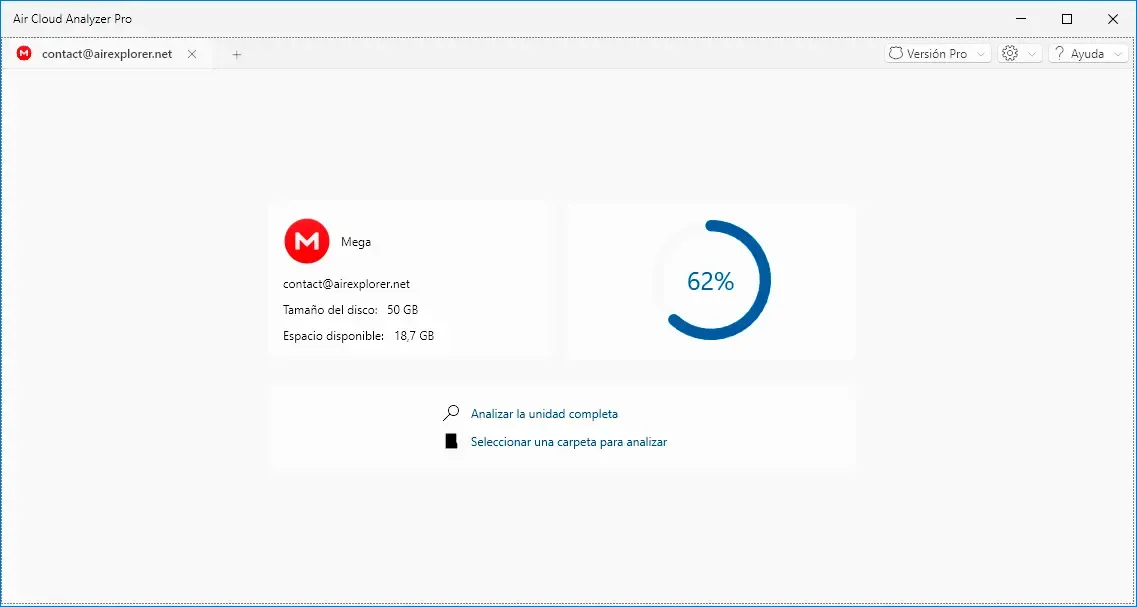
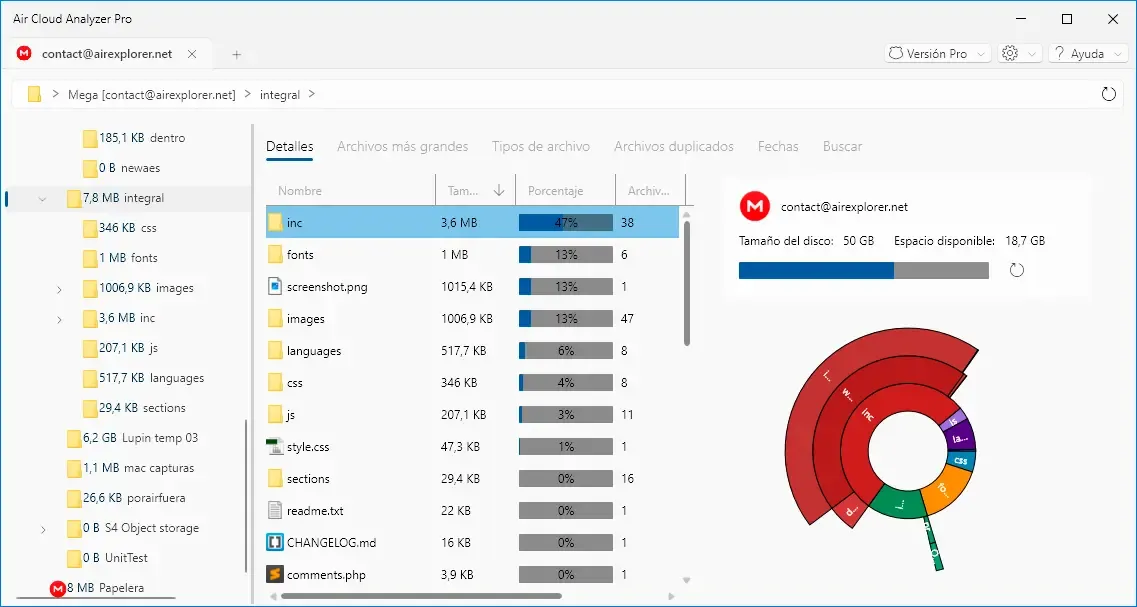
Begin with the visual overview to understand how your space is distributed. The Sunburst chart represents folders and their relative sizes, making unusually large areas easier to spot than they would be in a standard folder tree.
Use this view to answer a simple first question: which account or folder deserves closer inspection?
3. Find the Largest Files
Open the largest-files view and sort files by size. A small number of videos, disk images, archives, or backup files may account for a significant part of your storage use.
Review these files before looking at thousands of smaller documents. Deleting or moving one unnecessary multi-gigabyte backup can have more impact than clearing hundreds of small files.
4. Check Storage Use by File Type
The file type breakdown shows whether most of your space is occupied by videos, images, documents, audio, archives, or another category.
This helps you choose the right cleanup strategy. For example, a video-heavy account may contain exported recordings, while an archive-heavy account may contain old backups or repeated project packages.
5. Filter Old or Forgotten Files
Use date filters to find files that have not been modified for a long time. Age alone does not mean a file should be deleted, but it provides a useful review list.
Pay particular attention to old exports, completed project folders, temporary archives, and backups that have been replaced by newer copies. Files needed for legal, business, or tax purposes should follow your retention policy rather than a general cleanup rule.
6. Look for Duplicate Files
Duplicate files are easy to overlook when they are stored in different folders, accounts, or local drives. Use duplicate detection to identify possible redundant copies, then check their location and purpose before deleting anything.
Two files with the same name are not necessarily duplicates, and two genuine duplicates may still be required in separate backup locations. Treat duplicate results as candidates for review, not as an automatic deletion list.
7. Search Across Connected Storage
Use the built-in search when you know part of a filename or want to locate a specific type of content across several accounts. A unified search is faster than opening each provider separately and repeating the same query.
Filters for size, type, and date can narrow broad searches and help you find files that match a particular cleanup goal.
8. Review Before You Remove or Move Files
Before changing anything, confirm that the file is no longer needed, is not shared with another person, and is not the only copy of important data. For business storage, also check retention, compliance, and backup requirements.
The goal of storage analysis is not to delete as much as possible. It is to understand what you have and make deliberate decisions about what should stay, move, or go.
Air Cloud Analyzer vs. Air Explorer
Air Cloud Analyzer and Air Explorer solve different parts of cloud storage management.
| Product | Primary purpose | Best used for |
|---|---|---|
| Air Cloud Analyzer | Storage analysis and visualization | Finding large, old, or duplicate files and understanding storage use |
| Air Explorer | File management between cloud services | Transferring, synchronizing, copying, and backing up files |
Use Air Cloud Analyzer when you need to understand where your space is going. Use Air Explorer when you need to move or synchronize files between storage services. The two applications can complement each other in a broader cloud management workflow.
When Is a Cloud Storage Analyzer Useful?
A storage analyzer is particularly useful when:
- A cloud account is approaching its storage limit.
- You manage files across multiple cloud providers.
- You want to review your storage before upgrading a paid plan.
- Large files are difficult to locate manually.
- You suspect that copies of the same files exist in several locations.
- You need an overview of both cloud and local storage.
- You are preparing to archive an old account or project.
For a broader introduction to storage analysis, read The Smarter Way to Manage Your Storage Space.
Ready to see what is taking up space across your cloud accounts and local drives?
Download Air Cloud AnalyzerFrequently Asked Questions
Can I analyze cloud storage without downloading all my files?
Yes. Air Cloud Analyzer reads file metadata needed for the analysis instead of downloading every file’s contents. This avoids creating a second local copy simply to calculate storage use.
Can Air Cloud Analyzer analyze multiple cloud accounts?
Yes. You can connect supported cloud accounts and review their storage information from the same application, which is useful when files are distributed across different providers or accounts.
Can it analyze a local hard drive too?
Yes. Air Cloud Analyzer can analyze local storage as well as supported cloud accounts, allowing you to review cloud and local disk usage through a consistent interface.
Does Air Cloud Analyzer delete duplicate files automatically?
Duplicate results should be reviewed before any file is removed. A duplicate may be intentional, shared with someone else, or part of a backup strategy. Analysis helps you find candidates; you should decide which copies are safe to remove.
What is the difference between Air Cloud Analyzer and Air Explorer?
Air Cloud Analyzer is designed to analyze and visualize storage use. Air Explorer is designed to manage, transfer, and synchronize files between cloud services.
Should I clean up my cloud storage or buy more space?
Analyze the account first. If unused backups, very large files, or unnecessary duplicates consume a meaningful amount of space, cleanup may delay or eliminate the need for an upgrade. If most files are still required, increasing capacity may be the more practical option.
Understand Your Storage Before Expanding It
Cloud storage limits are easier to manage when you can see what is consuming the space. By reviewing the largest files, file types, dates, and possible duplicates across your connected storage, you can focus on the changes that matter most.